

My audio device is locked on Windows.
Last Edited: Mar 7, 2025
If you receive the following error on Windows, another Windows application, not SoundBridge, controls your soundcard exclusively.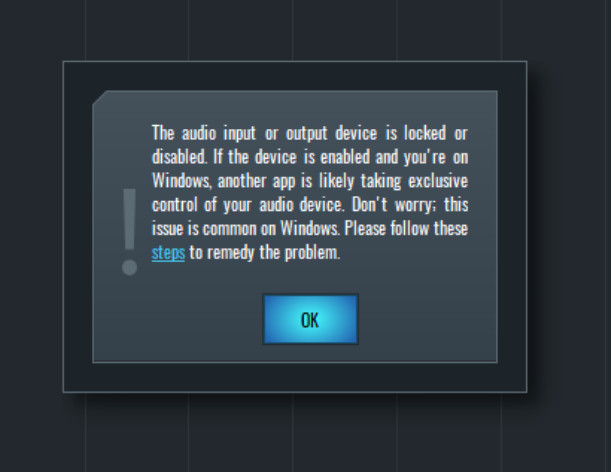
This is a prevalent issue on Windows and can happen to any DAW, but it's straightforward to remedy.
You must apply this solution to BOTH the Windows Playback and Recording device.
Step 1:
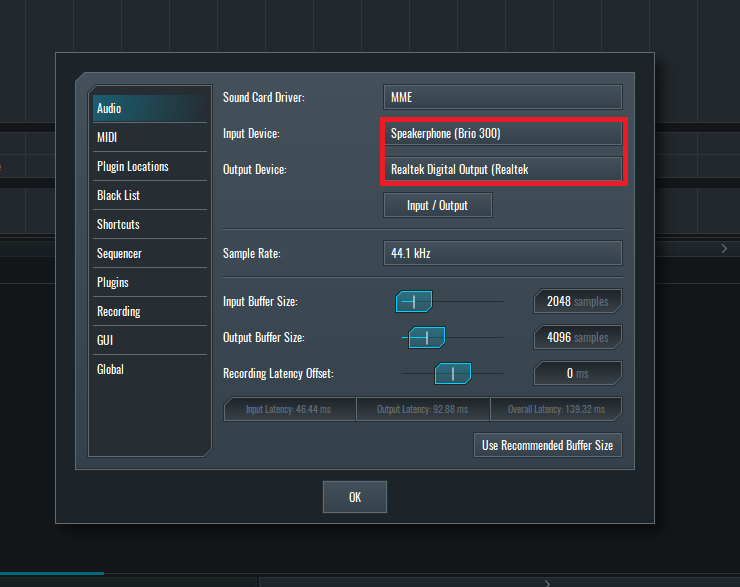
In SoundBridge, press "P" to open Preferences, go to the "Audio" section, and make a note of BOTH your Input and Output Devices.
Step 2:
Right-click on the Windows speaker sound icon on the right side of the Windows Taskbar and select "Sounds." Once the Sounds Control Panel is open, select the "Playback" tab and find and select the Playback device with the IDENTICAL NAME of the Output Device in SoundBridge's Preferences -> Audio -> Output Device. Once selected, click "Properties." 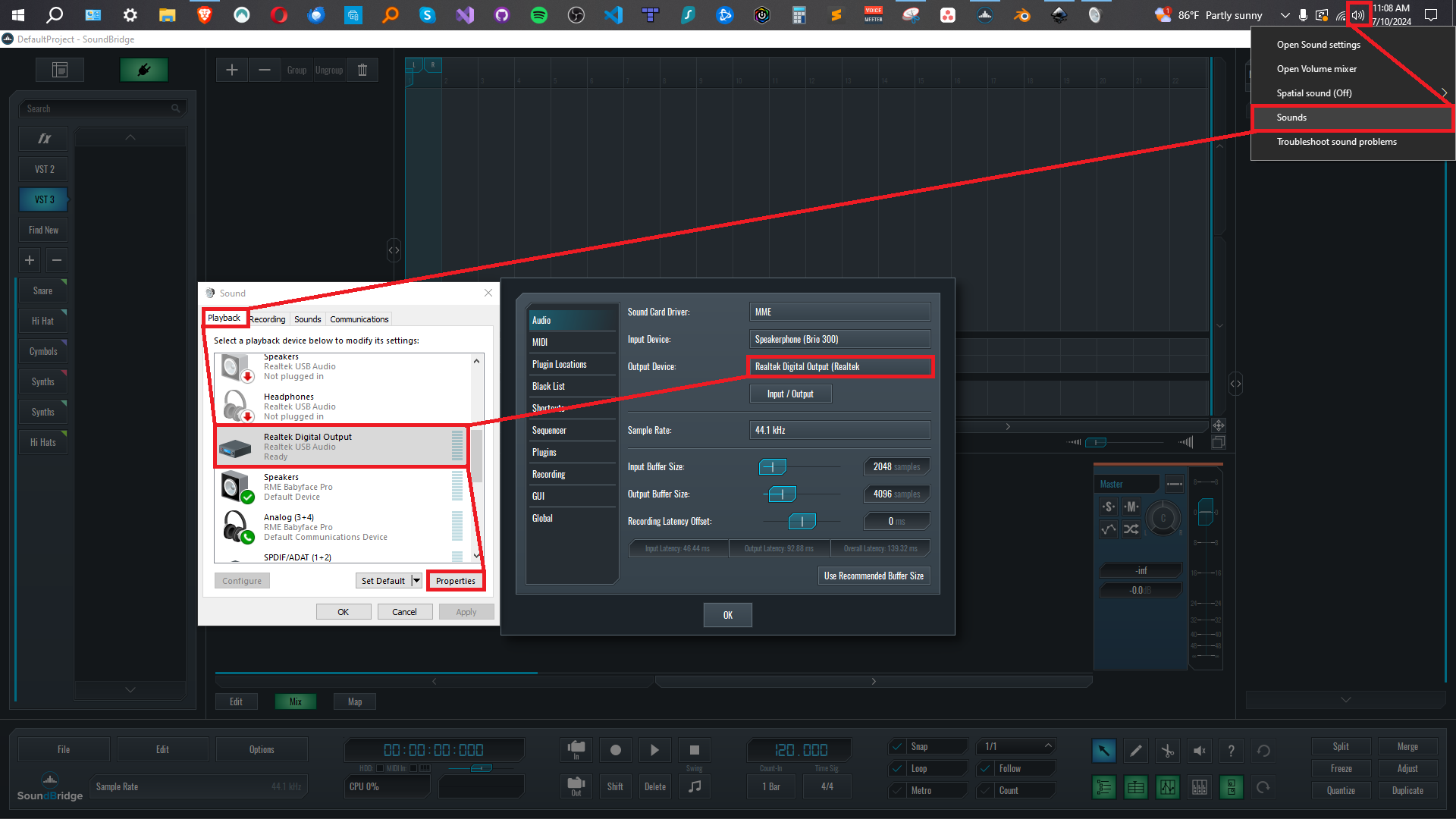
Note for Windows 11 users:
To get to the Sound menu on Windows 11, right-click the speaker sound icon on the right side of the Windows Taskbar and select "Sound settings":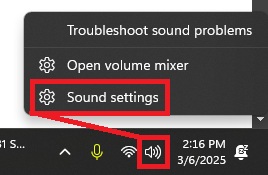
Then, scroll down and select "More sound settings".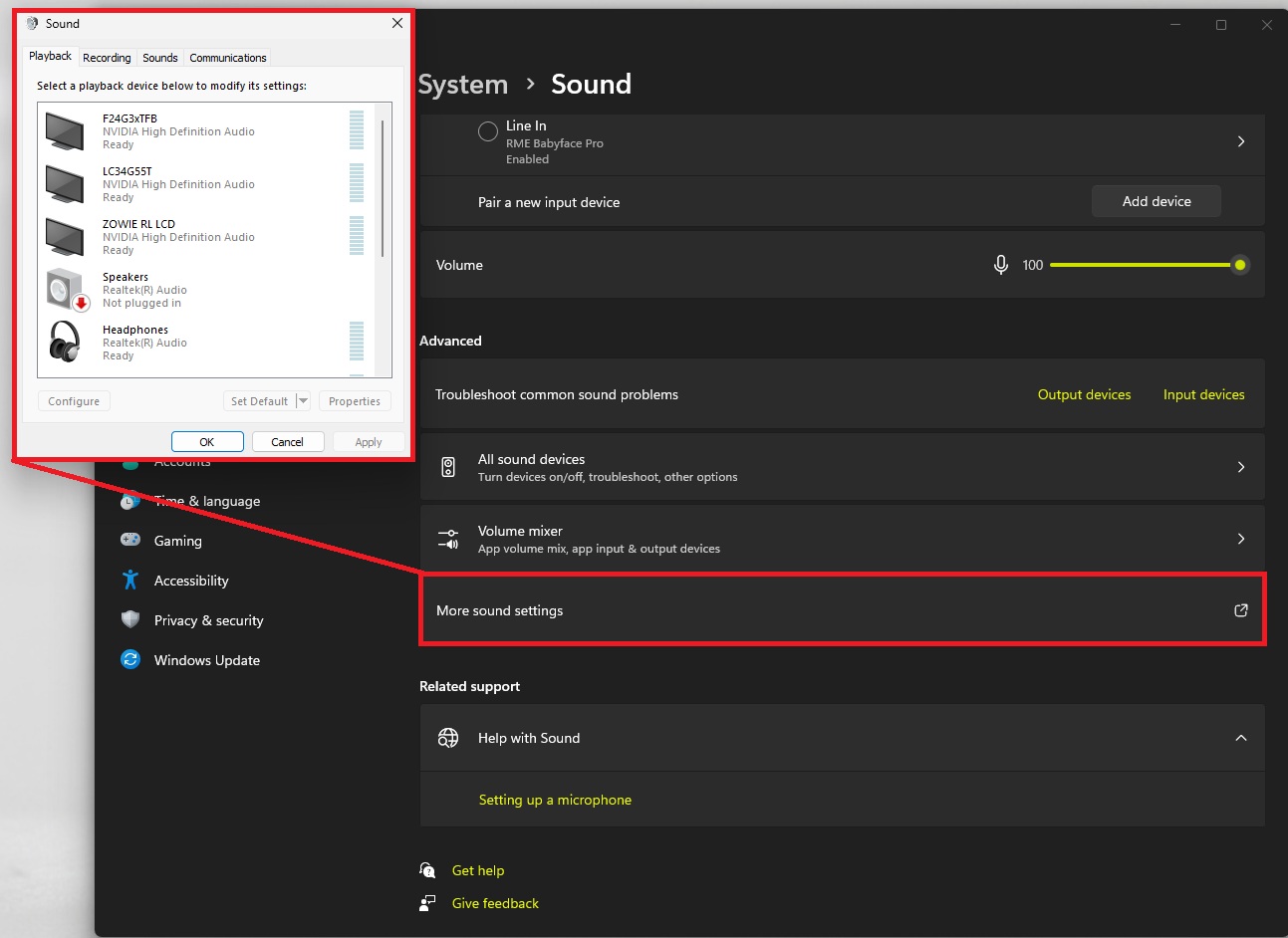
And Viola, you have accessed the Sound menu on Windows 11!
Step 3:
In Properties, select the "Advanced" tab, ensure BOTH "Allow the application to take exclusive control of this device" and "Give exclusive mode applications priority" are UNCHECKED, just like the picture below, and click "Apply." 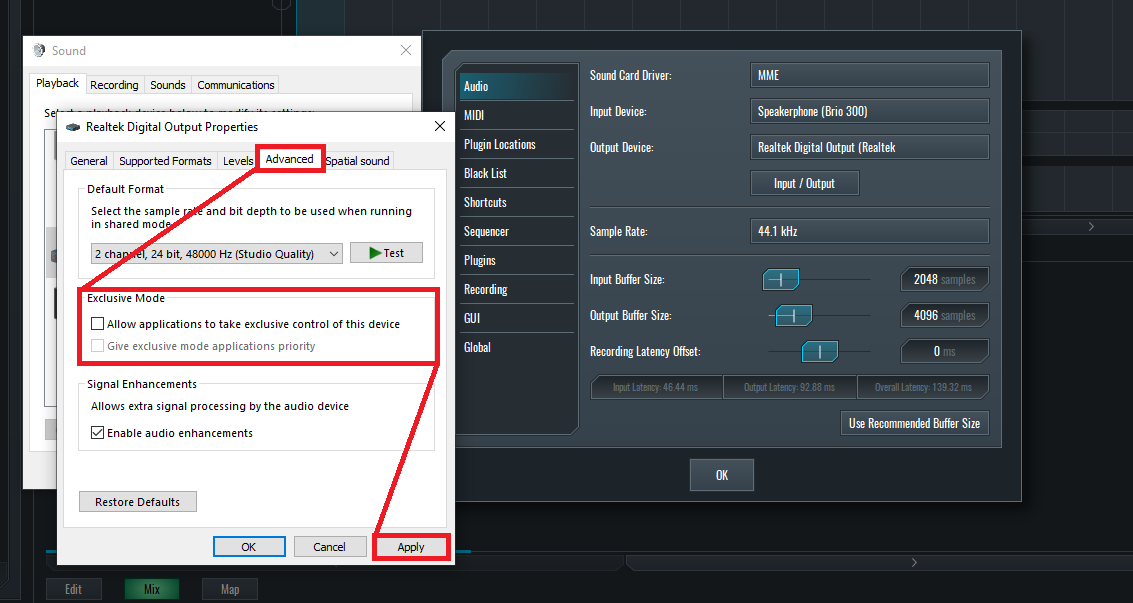
Step 4:
Now, we have to do the SAME PROCESS for the Input Device.
Right-click on the Windows speaker sound icon on the right side of the Windows Taskbar and select "Sounds." Once the Sounds Control Panel is open, select the "Recording" tab. Find and select the Recording device with the IDENTICAL NAME of the Input Device in SoundBridge's Preferences -> Audio -> Input Device. Once selected, click "Properties."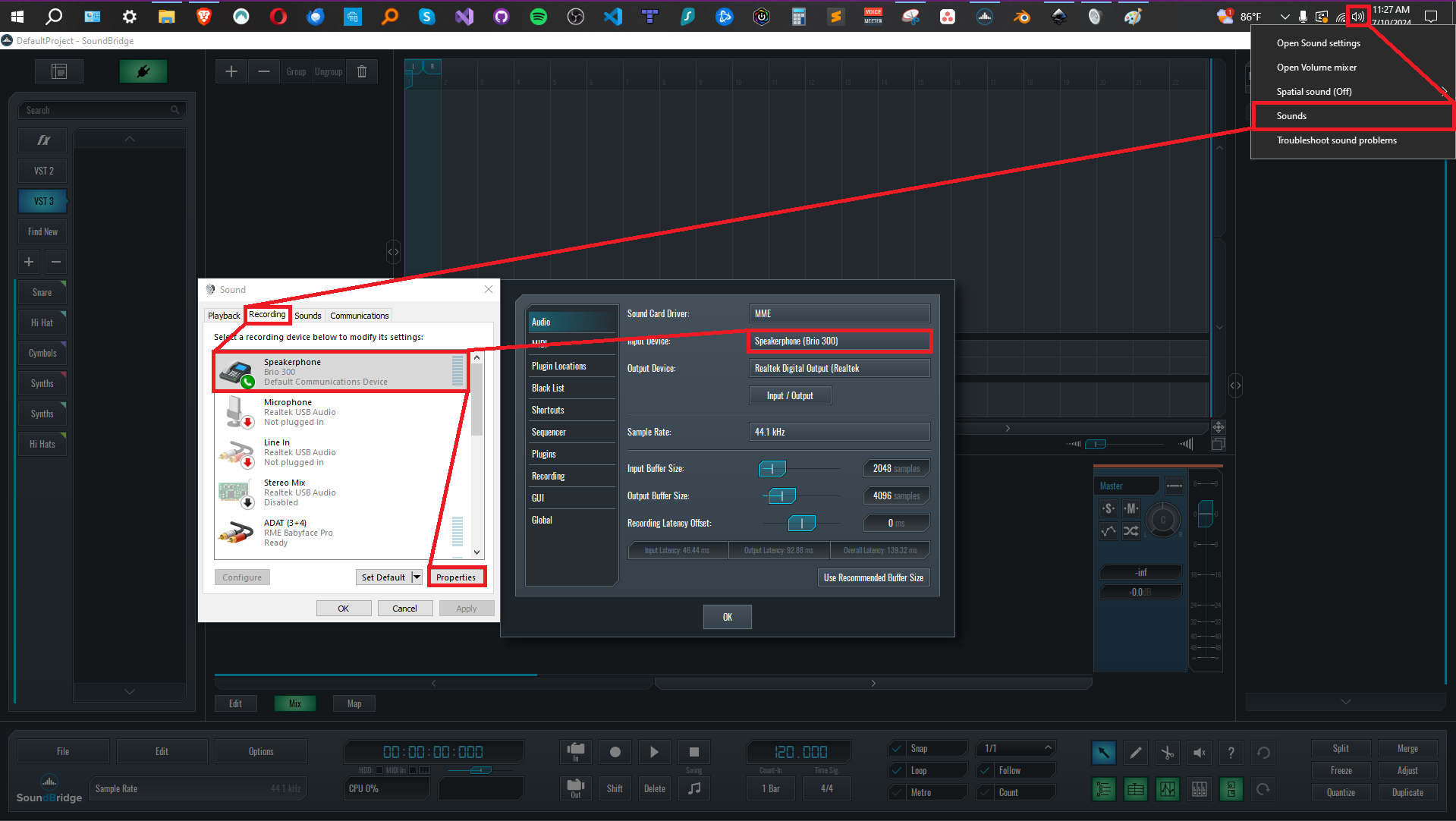
Step 5:
In Properties, select the "Advanced" tab, ensure BOTH "Allow application to take exclusive control of this device" and "Give exclusive mode applications priority" are UNCHECKED, just like the picture below, and click "Apply." 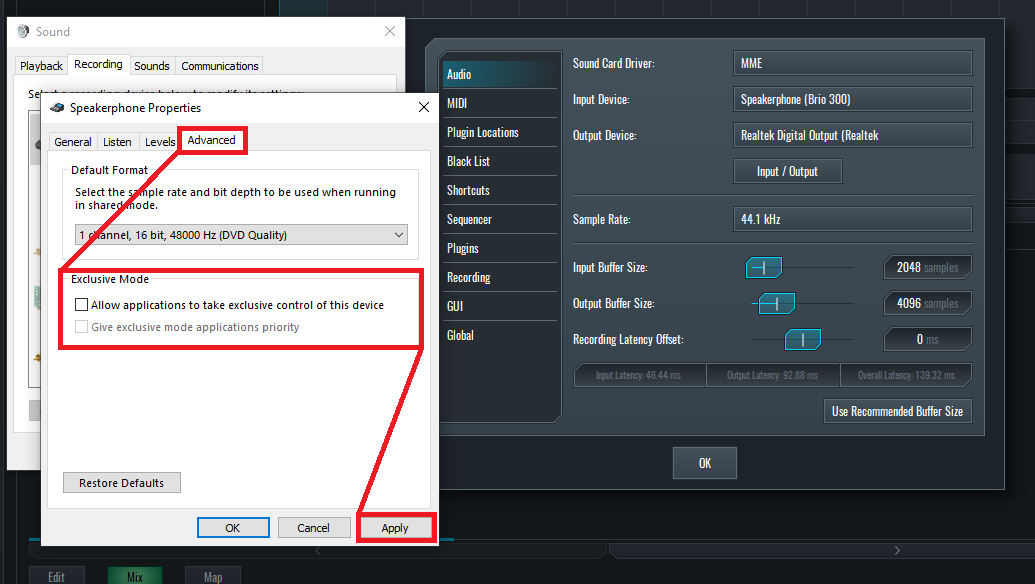
Step 6:
Restart SoundBridge and "Viola!" you should be able to record properly!
PLEASE NOTE:
If many strange apps lock your sound devices, you may have to repeat this process for every input and output device.
MASTER MUSIC PRODUCTION
Expert-led Kurse, die dich von den Basics bis zu fertigen Tracks bringen.
HOUSEVon bouncy Bass und solid Kicks: Dieser Kurs zeigt dir die modernsten House-Production-Techniken, um zu gewinnen und herauszustechen.
TRAPKling nicht nach 08/15-Trap, sondern produziere etwas World mit Far-East-Vibes. Erstelle ethnische Soundscapes, damit dein Trap der Konkurrenz voraus ist.
AMBIENTProduziere entspannte, sofisticierte psy-influenced Ambient. Psychedelisch und relaxed zum Hören – erschaffe meditative Soundscapes für Zen.