

Crossfade Clicks: How to Fix Them for Good
Last Edited: Oct 27, 2026

A click at a crossfade is almost never a crossfade problem. It is a jump in the waveform that the fade failed to hide, and the cure is usually a better edit point, a shorter fade, or a different curve. Work through the steps below in order, and you will find the cause in a few minutes.
TL;DR
- A click is a waveform discontinuity. Zoom in on the edit, find where the two sides jump, and fix that spot first.
- Move the edit before you lengthen the fade. Cuts in silence, or on quiet consonants, hide best.
- A crossfade needs overlap. If the clips have no spare audio past their edges, or there is a gap between them, use short fade-out and fade-in envelopes instead.
- Rule out clipping, DC offset, and buffer or sync trouble before you blame the fade.
- For a stubborn artifact, repair that spot with a de-click tool instead of lengthening every fade in the session.
Why a Crossfade Still Clicks
Picture a waveform as a line that has to stay continuous. When you cut two clips and bring them together, the last sample of clip A and the first sample of clip B can sit at very different levels. The speaker cone then has to jump instantly, and you hear a tick.
A crossfade hides it by ramping one clip down while ramping the other up, so the jump never happens at full level. This works when three things are true:
- The edit point is musically sensible.
- The fade is long enough to smooth the jump and short enough to stay invisible.
- Real audio exists on both sides to fade through.
When a click happens, one of those three has failed. The sections below take them in the order that saves the most time.
Step 1: Zoom In and Find Out What You Are Hearing
Don’t change anything yet. Loop an area of audio around the edit, zoom until you can see individual samples, and look at the waveform.
- A vertical jump at the edit. The sides don’t meet. This is the classic edit click, and Steps 2 to 4 fix it.
- A flat-topped waveform near the click. That is clipping, not an edit problem. Our page on audio clipping explains how to spot it and what to do about it.
- A waveform that sits above or below the center line. That points to DC offset, which makes every edit more likely to click. The Sound On Sound article lists DC offset, clipping, and sync or buffer problems as things to check before you keep lengthening the fade.
- A click that moves or changes on each playback. That is a playback problem (buffer size, a busy CPU, a drive hiccup), not the edit. Bounce the section to a file and listen to the bounce. If the bounce is clean, your edit is fine.
That last test is worth the thirty seconds. Plenty of people spend an hour re-fading an edit that was never broken.
Step 2: Move the Edit Before You Touch the Fade
The most common mistake is reaching for a longer crossfade. It feels logical: more fade, more smoothing. But a long overlap has a cost. iZotope’s vocal comping tips note that cutting mid-phrase can create pops and clicks, and they recommend editing in silences or on consonants instead. Stretch a fade across a sustained note or a vowel, and you can hear two takes at once, a doubled or smeared sound.
So slide the boundary first:
- Vocals: cut in the breath or the gap between words. If there is no gap, cut on a consonant like a T, K, or P, where the waveform is already noisy and abrupt.
- Drums: cut just before a transient, in the quietest part of the preceding decay.
- Guitars and keys: cut where the note is at its quietest, or on a new note’s attack, never in the middle of a ringing sustain.
- Dialogue and voiceover: cut in the room tone between words. If the room tone differs between takes, a short piece of matching background noise laid under the edit often does more than any fade.
Once the boundary sits somewhere forgiving, a very short crossfade is often all you need.
Step 3: Cut at a Zero Crossing
A zero crossing is the point where the waveform passes through the center line. If you cut both clips at zero crossings, the two sides meet near the same level, and the jump is tiny.
If you are cutting a loop or a one-shot sample, the stakes are higher. When a tool has no crossfade option for loops, matching the start and end of the loop waveform is more reliable than merely placing markers near zero.
Step 4: Choose a Short Fade and the Right Curve
A crossfade has three independent settings: its length, its shape, and where it sits relative to the cut. Sound On Sound’s fades workshop treats a crossfade as a transitional region that spans the end of one clip and the start of the next. Sound On Sound also explains that you can center the fade on the edit or offset it on purpose.
Here is a practical starting point. Treat these numbers as habits to try, not as rules from a standard:
| Material | Start with | If it still clicks | If it sounds doubled |
|---|---|---|---|
| Close-miked vocal | A few milliseconds | Move the edit into a breath | Shorten the fade, slide it so it ends at the new word |
| Drums, one hit to the next | Very short, ending before the transient | Edit at a zero crossing | Fade only the tail of clip A |
| Sustained pads or strings | Longer, tens of milliseconds | Try an equal-power curve | Move the edit to a note change |
| Room tone or ambiance | Longer is fine | Add a bed of matching noise | Rarely an issue |
Two curve types matter most:
- Equal gain keeps the summed level constant. Use it when the two clips are highly correlated, like two cuts of the same take.
- Equal power holds perceived loudness steady. Use it when the clips are different performances or sources; otherwise, you can hear a dip in the middle.
If you hear a dip or a bump in the middle of the fade, swap the curve before anything else. One DaVinci Resolve walkthrough ranked in Google for this query even says that picking the right crossfade type and gain setting fixes most pops in that program. The principle carries to other editors: match the curve to the material.
Step 5: Check That Your Clips Can Actually Crossfade
This is the cause behind many “why isn’t my crossfade working?” searches. A crossfade needs overlap. Both clips must contain audio beyond the cut, hidden past their visible edges, so the program has something to blend.
Signs you are missing overlap:
- The crossfade handle won’t drag or won't appear.
- Nothing changes when you apply a crossfade preset.
- A visible gap appears between the clips.
- The clips were trimmed from files that start or end exactly at the cut, so no spare audio exists.
The Sound On Sound Fades workshop draws a clear line: a crossfade spans two clips, while a fade-in or fade-out handles a clip with no overlap. That’s why automatic crossfade commands do nothing across a gap.
Your options:
- Restore handles. Trim or extend the clip edges so the original recording provides spare audio on each side.
- Close the gap if the gap is not meant to be silent, then crossfade.
- Use fade envelopes. Add a short fade-out on the first clip and a short fade-in on the second. You lose the blend, but you also lose the click.
- Bounce and re-import. If clips have been consolidated or glued, the underlying handles may be gone. Go back to the pre-glue version if you can.
Step 6: Rule Out the Non-Edit Causes
If the edit looks clean and the click remains, check these before you fiddle more with fades:
- Clipping. A clip at the peak of a transient will tick regardless of the crossfade. Lower the gain before the edit, or see how a limiter can catch peaks later in the chain.
- DC offset. Remove it in your editor, then redo the edit.
- Buffer and sample-rate mismatches. Importing 44.1 kHz material into a 48 kHz project without conversion, or running a very small buffer on a heavy session, can cause dropouts that sound like clicks.
- Plugin latency. A plugin with latency on only one track can shift material out of alignment at the edit.
- Automation steps. A sudden jump in volume, filter cutoff, or pan automation right at a boundary makes its own click. Smooth the automation ramp. If it is a filter sweep doing it, our guide to cutoff filters can help you shape it.
Delay and modulation tails can also be cut off at an edit point, and the abrupt end can sound like a click. If that’s your culprit, read our explanation of delay effects and let the tail ring out past the edit.
Step 7: Repair a Stubborn Click Directly
Sometimes the click is baked into the recording: a mouth click, a digital glitch, a cable tick. A crossfade is the wrong tool. iZotope’s guide to removing digital clicks and pops recommends using a dedicated de-click module. It advises raising the detection sensitivity only until the desired sound starts to be affected, then backing off. It also notes that click widening can capture the artifact's decay, and that several light passes can beat one heavy one.
The habit to build: repair the smallest region that holds the problem. Fixing one click with a global setting is how a session ends up with dull transients and doubled consonants.
A Quick Fix Order You Can Keep by Your Desk
- Bounce the section. Does the click survive? If not, it’s playback, not the edit.
- Zoom to sample level. Look for a jump, clipping, or DC offset.
- Move the edit into silence, a breath, or a consonant.
- Snap both sides to zero crossings.
- Apply a short crossfade with the right curve.
- If there is no overlap, use short fade-out and fade-in envelopes.
- Repair isolated artifacts with a de-click tool.
Most clicks die by step 4.
Try These Edits in SoundBridge
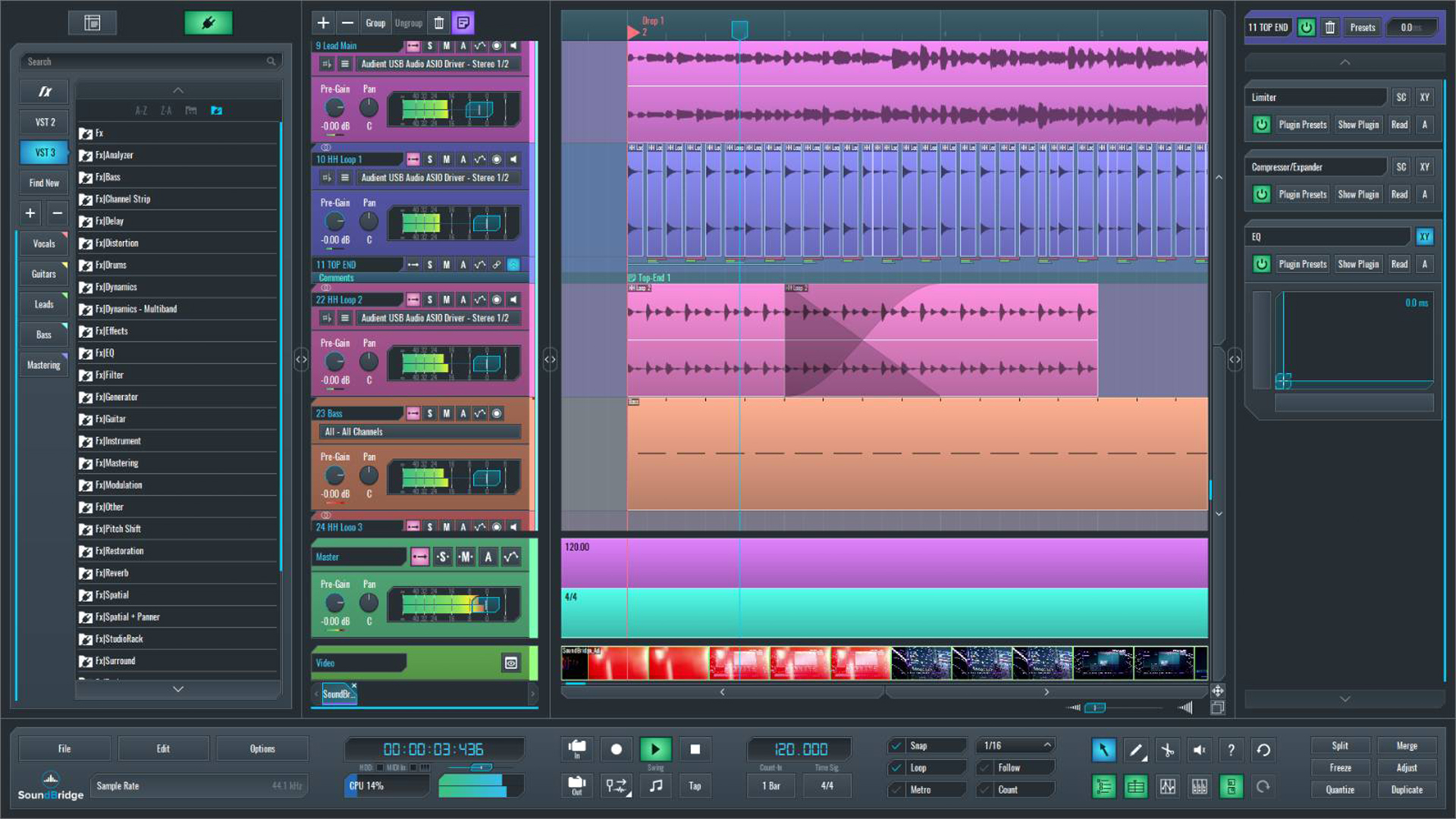
SoundBridge is a DAW for Mac and Windows built for audio editing, music production, and remote collaboration. You can practice everything above on your own material: zoom in, snap, fade, bounce, and compare. For remote collaboration, you can use our STUN/TURN access for $ 4.99 per month. See the plans and download SoundBridge, or read how remote sessions work in SoundBridge.
FAQ
Why isn’t my crossfade working?
Most often the clips have no overlap. A crossfade needs audio beyond the cut on both sides, and it can’t bridge a gap. Extend the clip edges or restore the original handles, or fall back to a short fade-out on the first clip and a short fade-in on the next.
How do I get rid of clicks and pops in audio?
First, determine whether the click comes from an edit, the recording, or playback. For edits, move the cut into silence, snap to zero crossings, and add a short crossfade. For clicks inside the recording, use a de-click tool on just that region, with sensitivity raised only as far as needed.
How do I remove a crossfade?
Drag the fade handles back to zero length, or undo the edit. If the edit then clicks, the crossfade was doing real work. Replace it with a shorter one instead of removing it.
Should I make my crossfade longer to remove a click?
Usually not. A longer overlap can bring in consonants or sustained notes from both clips and make the audio sound doubled. Move the edit point and check the curve first, then lengthen only if the result still sounds right.
Sources
MASTER MUSIC PRODUCTION
Expert-led courses designed to take you from fundamentals to finished tracks.

HOUSEFrom bouncy bass and solid kicks, this course teaches you the most modern House music production techniques needed to succeed and stand out.

TRAPQuit sounding like generic Trap and produce something World with hints of the Far East. Create ethnic soundscapes to put your Trap ahead of the curve.

AMBIENTProduce relaxing, sophisticated psy-influenced ambient. Psychedelic and relaxing to listen to, create meditative soundscapes to put your listeners in Zen.