

Fixing Latency in Remote Sessions Without Losing the Take
Last Edited: Aug 18, 2026
Plug into Ethernet, drop your interface’s monitoring buffer as low as your CPU will tolerate, and record dry locally while a low-latency stream handles timing. That’s the fastest way to cut audible latency in a remote session, and it works whether you’re comping vocals with a singer three states away or tracking a full band across time zones.
The AES standard for networked audio puts the ideal end-to-end latency target around 15 to 20 milliseconds for tight musical alignment. When round-trip delay climbs past a certain threshold, real-time playing starts to feel like typing through molasses, so that’s your cue to switch to a hybrid workflow instead of fighting the network. A platform like Soundbridge, built around zero-latency remote tracking, gives you a studio-grade path that keeps monitoring tight while every participant records full-fidelity audio locally.
Run through this before your next session starts:
- Switch every machine involved from Wi-Fi to a wired Ethernet connection.
- Set your DAW’s monitoring buffer to the smallest stable size (start at 128 samples).
- Turn on direct hardware monitoring if your interface supports it.
- Pause cloud backups, sync services, and anything else eating upload bandwidth.
- Record locally in full quality, regardless of what the monitor stream sounds like.
Pro Tip: Test your monitoring path solo before anyone joins the call. If it feels sluggish with just you in the room, it will feel unplayable with three other performers layered in.
Key Takeaways
Cutting audible latency in a remote session comes down to wired networking, minimal monitoring buffers, direct hardware monitoring, and local full-fidelity recording as a safety net.
| Point | Details |
|---|---|
| Ethernet first | Wired connections remove the jitter that Wi-Fi almost always introduces. |
| Buffer size controls delay | Drop your monitoring buffer as low as your CPU allows without glitching. |
| 60 ms is the switch point | Move to a hybrid local-recording workflow once round-trip latency crosses that line. |
| Always verify with a test | Run a loopback or ping/jitter check after every change, not just before the session. |
| Soundbridge for integrated sync | Readers who want zero-latency tracking and server-timed sync built in can evaluate Soundbridge directly. |
Fixing Latency in Remote Sessions: The Priority Checklist
Not every fix carries equal weight, so work through these in order rather than changing five settings at once and guessing which one helped.
- Switch to wired Ethernet. This alone typically shaves 10 to 30 milliseconds of jitter-driven delay off a shaky Wi-Fi connection.
- Lower your monitoring buffer. Dropping from 512 to 128 samples on a capable interface can significantly reduce monitoring latency.
- Enable direct monitoring on your interface. This routes your signal around the software entirely, often eliminating another 5 to 15 milliseconds of round-trip delay.
- Close bandwidth-hungry background apps. Backups, cloud sync, and browser tabs streaming video all compete for the same pipe your audio needs.
- Use a dedicated low-latency monitoring path or UDP-based audio transport where your platform supports it. TCP retransmissions add unpredictable delay that UDP avoids.
A few trade-offs worth knowing before you touch a slider:
- A smaller buffer means less delay, but it also means less headroom for your CPU. Push it too low, and you’ll hear clicks, pops, or full dropouts.
- If you can’t get round-trip latency under roughly 50 milliseconds after working through this list, stop chasing the network and set up the hybrid workflow covered further down.
Why Does Latency Still Happen With Fast Internet?
Bandwidth and latency are not the same problem, and that’s the single most common misunderstanding in remote sessions. You can have a very fast connection and still feel a noticeable delay if your packets arrive out of order.
Round-trip latency measures the time from when you play a note to when you hear its return after processing on the other end. One-way latency measures just half that trip, and it’s the number that matters most for how “in time” a performance feels. Jitter is the variance in how consistently packets arrive, and it’s often the real villain. A connection with 20 milliseconds of average delay but wild jitter will feel worse than one with 30 milliseconds of delay and rock-solid consistency.
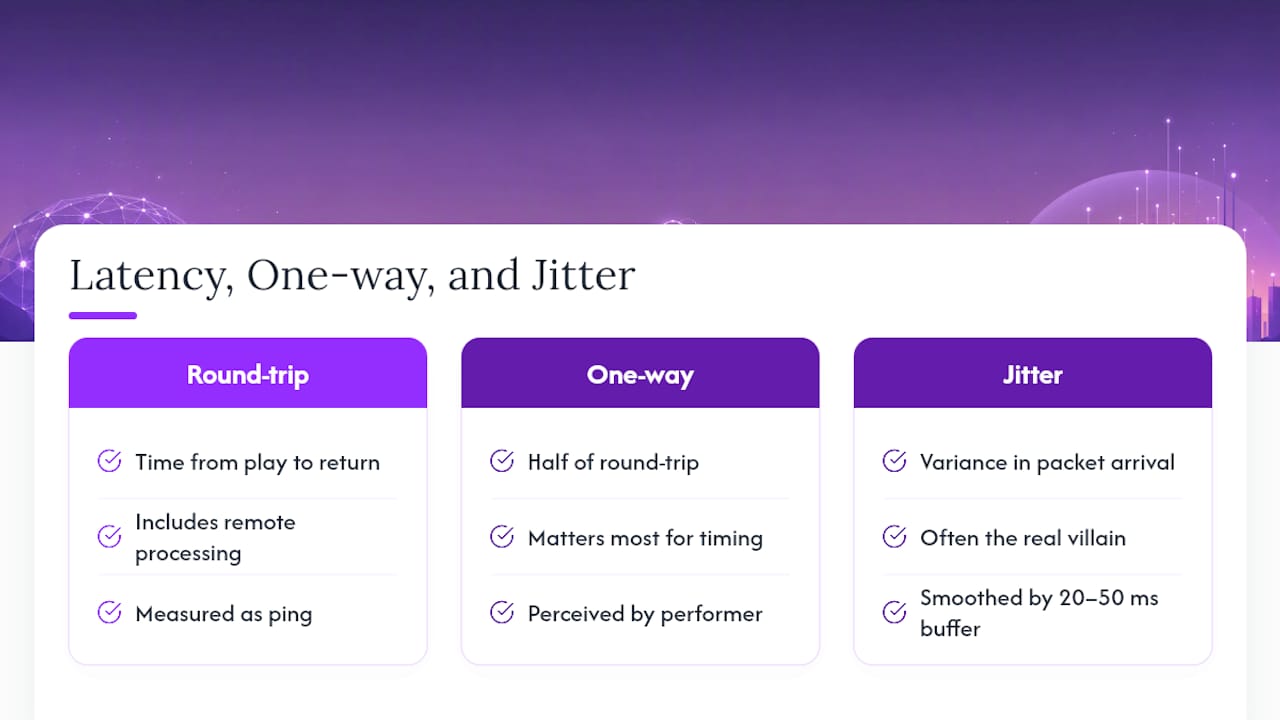
To smooth that inconsistency, most platforms use a jitter buffer, typically sized between 20 and 50 milliseconds, to reorder packets before playback. That buffer is what keeps audio from stuttering, but it adds a fixed delay in exchange for stability. WebRTC-based tools often use browser-default buffer sizes that you can’t adjust, which explains why some browser collaboration tools feel laggy no matter how good your connection is.
Here’s the part that trips people up most: many platforms separate the real-time monitoring path from the actual recording path. You might hear a delayed or slightly processed version of a performance while the file being captured locally is completely clean.
If a take sounds off through your headphones, don’t assume it’s ruined. Check the local recording before you scrap it. Monitoring delay and recording quality are often two entirely different signals.
Pro Tip: Measure jitter, not just average ping. A stable 40-millisecond connection often outperforms a 25-millisecond connection that swings wildly, because your brain adapts to consistent delay far more easily than to unpredictable delay.
Which DAW and Interface Settings Actually Cut Latency?
Your buffer size settings do more work here than almost anything else you can touch. JamKazam’s testing on frame and buffer sizing shows that even small buffer changes materially affect both latency and stability, and that using your interface’s proper vendor drivers—ASIO on Windows, Core Audio on Mac—beats generic drivers every time.
Here’s what actually moves the needle:
- Use ASIO or Core Audio drivers exclusively. Generic Windows drivers introduce a delay you can’t get back.
- Set your monitoring buffer to 64-128 samples if your CPU can handle it without crackling.
- Record to a larger, more stable buffer (256 to 1024 samples) or freeze CPU-heavy tracks so recording doesn’t compete with monitoring for processing power.
- Match sample rates across every machine in the session. 48 kHz is a practical sweet spot for most WebRTC and Opus-based streaming platforms, since higher rates like 96kHz or 192kHz add processing overhead without a latency benefit on the monitoring side.
- Turn off latency-heavy plugins (convolution reverbs, look-ahead limiters) on the live monitoring path. Save those for mixing.
- Lean on direct hardware monitoring instead of software monitoring whenever your interface allows it.
Pro Tip: Build a session template with separate monitor and record signal chains, dry on the monitor bus, processed on the recording bus. That way, tweaking your monitoring setup mid-session never risks corrupting the actual take. Good audio interface selection makes this split far easier to manage cleanly.
What Network Changes Reduce Jitter and Packet Loss?
Wired Ethernet remains the single highest-leverage network fix available to you, full stop. Beyond that, a handful of router and workstation changes close most of the remaining gap.
- Enable Quality of Service (quality of service) on your router and prioritize UDP audio traffic or DSCP-tagged packets if your platform supports it.
- Avoid convoluted routing paths, extra hops through NAT, mesh Wi-Fi extenders, or VPNs almost always add latency and jitter.
- JamKazam’s guidance on router maintenance recommends rebooting consumer-grade routers regularly, or replacing an aging one entirely if it’s several years old.
- Pause cloud backups and disable VPNs on the audio path unless a VPN is required for the session itself.
- Put other household or studio devices on a guest network during sessions so streaming video or game downloads don’t steal bandwidth mid-take.
For bandwidth planning, a stereo 48kHz stream generally requires 5 to 10 Mbps for both upload and download. Multichannel sessions or higher sample rates scale that requirement up proportionally, but more bandwidth won’t fix jitter on its own.
The AES’s guidance on live audio transport treats latency, jitter, and packet loss as three separate quality-of-service parameters that all need to be managed independently, not one problem you solve by throwing bandwidth at it. That’s the piece most “just get faster internet” advice misses entirely.
How Do You Measure Latency Before and During a Session?
You can’t fix what you haven’t measured, and eyeballing “it feels slow” gets you nowhere useful. Run these checks in order:
- Loopback test. Play a click through your monitor path and time the return using your DAW’s built-in latency meter or a stopwatch app. This isolates your local hardware and buffer settings.
- Platform latency meter. Most collaboration tools display an estimated round-trip number; use it as your baseline before a session starts, not mid-take.
- Network ping and jitter test. Run a standard ping test to the other participant’s general region and watch the variance between pings, not just the average.
- Full-chain round-trip test. Have one performer play a rhythmic pattern while the other claps along on the beat, then check the recorded alignment. This catches issues the meters miss.
| Round-Trip Latency | What It Means | Typical Cause If Exceeded |
|---|---|---|
| Under 25 ms | Real-time jamming feels natural | Rarely exceeded on wired local networks |
| 25 to 60 ms | Workable for loose comping and overdubs | Wi-Fi jitter, moderate distance, buffer size too high |
| Over 60 ms | Real-time playing feels disconnected | Long geographic distance, VPN overhead, jitter buffer inflation |
What’s the Fallback When Real-Time Sync Isn’t Possible?
Once you’ve worked the checklist and you’re still sitting above 60 milliseconds, stop treating that as a problem to solve and start treating it as a workflow to design around. Keep the low-latency stream running for feel and timing, but have every performer record locally at full fidelity and sync the files afterward.
Here’s a workflow that holds up under real session pressure:
- Confirm that sample rates and bit depths match across all machines before you hit record.
- Have each performer play a single sharp clap, or use a silent marker tone, at the top of every take on its own track for auto-alignment later.
- Record in loop lanes so multiple takes stack without overwriting the marker reference.
- Name and version files consistently (
song_part_take_dateSo nothing gets lost during export. - Export stems as 32-bit float and generate checksums before transferring, so file corruption during upload gets caught immediately.
Pro Tip: A single audible clap on a dedicated marker track is more reliable than relying on a DAW’s transport timestamp alone. Timestamps can drift between machines; a clap waveform never lies. For the file-handling side of this, remote audio editing workflows and a tool like Posthive both handle stem handoff cleanly once the local takes are captured.
How Do You Tell If Latency Is Coming From the Network, the Computer, or the DAW?
Work through these checkpoints in sequence rather than changing everything at once:
- Test local loopback first. If your interface shows high latency with nothing else running, the problem starts at your hardware or driver, not the network.
- Test on a wired LAN. If latency is fine on your local network but bad remotely, the issue lies in your internet path.
- Ping and jitter-test the other participant’s connection. High jitter with acceptable average ping points to an unstable route, not raw speed.
- Check the platform itself. Server-side jitter buffer spikes or overloaded collaboration servers can add delay that no local fix will touch.
Quick actions at each stage: swap to Ethernet, disable non-essential plugins, reboot the router, and run a fresh ping/jitter test after each change so you know exactly what helped.
If the issue is intermittent rather than constant, log it. Screenshot your DAW’s buffer settings and CPU meter, save a ping/jitter log from the session, and note the time each glitch happened. That diagnostic trail turns “it was weird sometimes” into a pattern you can actually fix.
Pro Tip: Never change two variables in the same test. If you swap your buffer size and your network connection in the same session, you’ll never know which one fixed it.
How Were These Latency Thresholds Determined?
These recommendations draw on AES networked-audio guidance, platform-level technical analyses, and documented engineer testing rather than a single lab setup, and the difference between controlled lab measurements and real session conditions matters more than most guides admit.
Test methods behind the thresholds cited here include loopback latency checks, DAW buffer profiling under varying CPU loads, ping and jitter logging across multiple session lengths, and practical rehearsal sessions where the real failure point is a missed beat, not a number on a meter. Clock drift between separate audio interfaces is a factor lab tests sometimes underweight; research on distributed audio synchronization confirms that even a perfect network connection won’t stop two independent hardware clocks from gradually drifting apart over a long session.
The gap between a clean lab measurement and a messy real session is where most latency advice falls apart. Numbers on a meter don’t account for a drummer’s internal sense of timing compensating for delay a singer can’t ignore.
| Point | Details |
|---|---|
| Wired beats wireless every time | Ethernet removes the single biggest source of jitter in most home studio setups. |
| Small buffers need headroom | Drop your monitoring buffer only as far as your CPU can handle without glitching. |
| 60 ms is the hard line | Past that round-trip threshold, switch to a hybrid local-recording workflow instead of fighting the network. |
| Clock drift is silent | Long sessions need periodic resync or server-side timing authority to stay aligned. |
One Engineer’s Take on Chasing Perfect Sync
There’s a point in every remote session where chasing lower latency stops helping the music and starts hurting it. I’ve seen sessions where a performer got so fixated on shaving another 10 milliseconds off the monitor path that the actual take suffered, tense, overthought, stripped of the looseness that made the song worth recording in the first place.
The uncomfortable truth is that some sessions won’t get under 60 milliseconds no matter what you optimize, and the sooner you accept that, the sooner you get a usable take. Switching to hybrid at 55 milliseconds instead of stubbornly grinding through another hour of router tweaks has saved more sessions than any single technical fix on this page. Musicians play through worse conditions than a constantly delayed monitor mix, a room with bad headphone bleed, or a click track that’s slightly off. Latency is just one more constraint to play around with, not a wall that stops the session cold.
Know your threshold, know when you’ve hit it, and know that a clean local stem beats a perfectly synced but lifeless performance every time.
Get Studio-Accurate Sync Without the Guesswork
Soundbridge is built specifically for the problem this article just walked through: keeping a session musical when the network won’t cooperate. Instead of stitching together a DAW, a separate call app, and a prayer that your buffer settings hold, Soundbridge handles zero-latency remote tracking natively, with server-side timing authority that keeps clock drift from creeping into longer sessions.
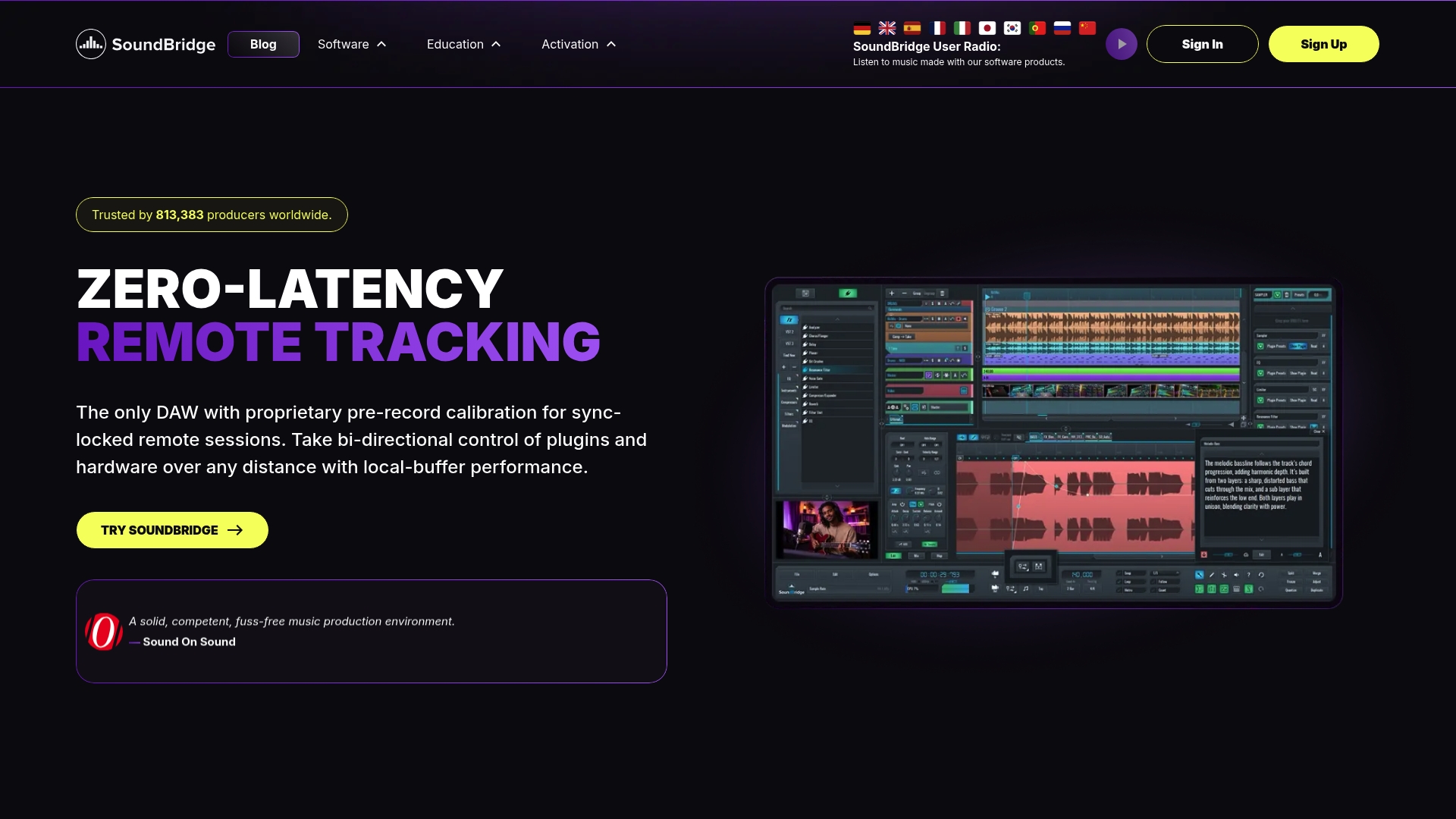
The platform supports sample rates up to 192kHz, bi-directional control of plugins and hardware across every connected machine, and integrated talkback so you’re not toggling between three separate apps mid-take. Stems export cleanly for the hybrid workflow covered earlier, and direct monitoring integration means performers hear a tight, low-latency signal while the platform preserves full-fidelity local audio behind it.
If you’ve been patching together fixes session after session, it’s worth seeing what a platform designed around this exact problem looks like. Explore Soundbridge’s virtual collaboration features or head straight to the Soundbridge DAW landing page to see zero-latency remote tracking in action.
Where to Learn More About Latency and Sync
For engineers who want to go deeper into the technical side, these sources back up the thresholds and diagnostics covered above:
- The AES networked-audio standard lays out the QoS parameters and end-to-end latency targets referenced throughout this guide.
- JamKazam’s technical notes on minimizing latency cover driver selection, buffer sizing, and router maintenance in more depth.
- The technical analysis of remote recording platforms versus in-studio sessions explains jitter buffer behavior in WebRTC-based tools.
- Research on clock drift in distributed audio systems supports the warnings about timing divergence in longer sessions.
- Practical remote collaboration guidance from Audome reinforces the local-recording-first approach used in the hybrid workflow section.
- For rehearsal-side timing discipline that carries over into remote sessions, MusicStreet’s rehearsal tips are worth a look.
Frequently Asked Questions
What is an acceptable latency for remote music sessions? Round-trip latency under 25 milliseconds feels close to playing in the same room. Between 25 and 60 milliseconds still works for loose comping and overdubs, but past 60 milliseconds, switch to a hybrid workflow rather than fighting for real-time feel.
Does upgrading my internet speed fix latency in remote sessions? Not on its own. Bandwidth and latency are different problems, and jitter—the inconsistency in packet arrival—often matters more than raw speed. A stable, slower connection frequently outperforms a fast, jittery one.
Why does my recorded take sound better than what I heard while playing? Many platforms separate the low-latency monitoring stream from the high-fidelity local recording. What you hear live may include delay or light processing that never touches the actual file being captured.
Should I use Wi-Fi or Ethernet for remote recording sessions? Wired Ethernet, every time it’s available. Wi-Fi introduces jitter and packet loss that a wired connection largely avoids, and that inconsistency is often the real source of perceived lag.
When should I switch to a hybrid recording workflow? Once round-trip latency consistently exceeds roughly 50 to 60 milliseconds after working through buffer, driver, and network fixes, stop chasing real-time sync and record locally while using the live stream purely for timing and feel.
Sources
- AES technical standard: Networked audio over IP (selected sections)
- Remote recording platforms vs. in-studio sessions: a technical latency analysis
- Minimizing latency in online music performance (JamKazam)
- Research paper on clock drift and synchronization in distributed audio systems
Recommended
MASTER MUSIC PRODUCTION
Expert-led courses designed to take you from fundamentals to finished tracks.

HOUSEFrom bouncy bass and solid kicks, this course teaches you the most modern House music production techniques needed to succeed and stand out.

TRAPQuit sounding like generic Trap and produce something World with hints of the Far East. Create ethnic soundscapes to put your Trap ahead of the curve.

AMBIENTProduce relaxing, sophisticated psy-influenced ambient. Psychedelic and relaxing to listen to, create meditative soundscapes to put your listeners in Zen.