

Low-Latency Audio Streaming for Producers and Engineers
Last Edited: Aug 14, 2026
Switch to wired Ethernet, set your audio interface buffer to 64–128 samples at 48 kHz, and use ASIO (Windows) or Core Audio (Mac) drivers. Those three changes alone get most home studios into the 20–50 ms mouth-to-ear (M2E) range that real-time audio collaboration research identifies as the practical target for musical interaction. For tighter ensemble tracking, aim for a low round-trip time (RTT).
Minimum gear to reach studio-grade low-latency audio streaming:
- Dedicated audio interface (USB or Thunderbolt) with ASIO/Core Audio drivers
- Wired Gigabit Ethernet on both ends (no Wi-Fi for the audio path)
- CPU with at least 6 cores, running a real-time or low-latency OS profile
- Router with QoS enabled to prioritize audio traffic
Pro Tip: Before your first remote session, run a quick local loopback test. If your round-trip time inside the box exceeds 10 ms, fix that before adding network distance.
Key Takeaways
Achieving studio-grade low-latency audio streaming inside a DAW requires wired Ethernet, ASIO/Core Audio drivers at 64–128 samples, and jitter control, not just a low ping.
| Point | Details |
|---|---|
| Target M2E range | Aim for 20–50 ms total M2E; under 30 ms enables tight ensemble tracking for most genres. |
| Jitter beats steady latency | A stable 40 ms M2E outperforms an unstable 20 ms; prioritize jitter control via QoS and wired connections. |
| Measure before you optimize | Run a local loopback and ping jitter test first; fixing the wrong layer wastes session time. |
| Performer rehearsal matters | Latency rehearsals before tracking sessions close the performance gap more than most hardware upgrades. |
| SoundBridge for in-DAW tracking | SoundBridge delivers zero-latency remote tracking with bi-directional control and local recording safeguards in one DAW. |
Where Does Latency Actually Come From in Your Signal Chain?
Every millisecond in your M2E budget has a source. Here is how the chain breaks down, with typical studio ranges and how to isolate each contributor:
| Latency contributor | Typical range (ms) | How to measure it |
|---|---|---|
| ADC/DAC conversion | 1–3 ms | Manufacturer spec sheet |
| Driver buffer (ASIO/Core Audio) | 1–6 ms at 64–256 samples | DAW reported latency |
| DAW plugin processing | 1–10 ms | Plugin delay compensation readout |
| OS scheduling overhead | 1–3 ms | jack_iodelay or LatencyMon |
| Network packetization | 1–4 ms | Wireshark or ping with small packets |
| Network RTT (one-way) | 5–40 ms | ping to remote host |
| Receiver jitter buffer | 2–20 ms | NMP tool diagnostics |
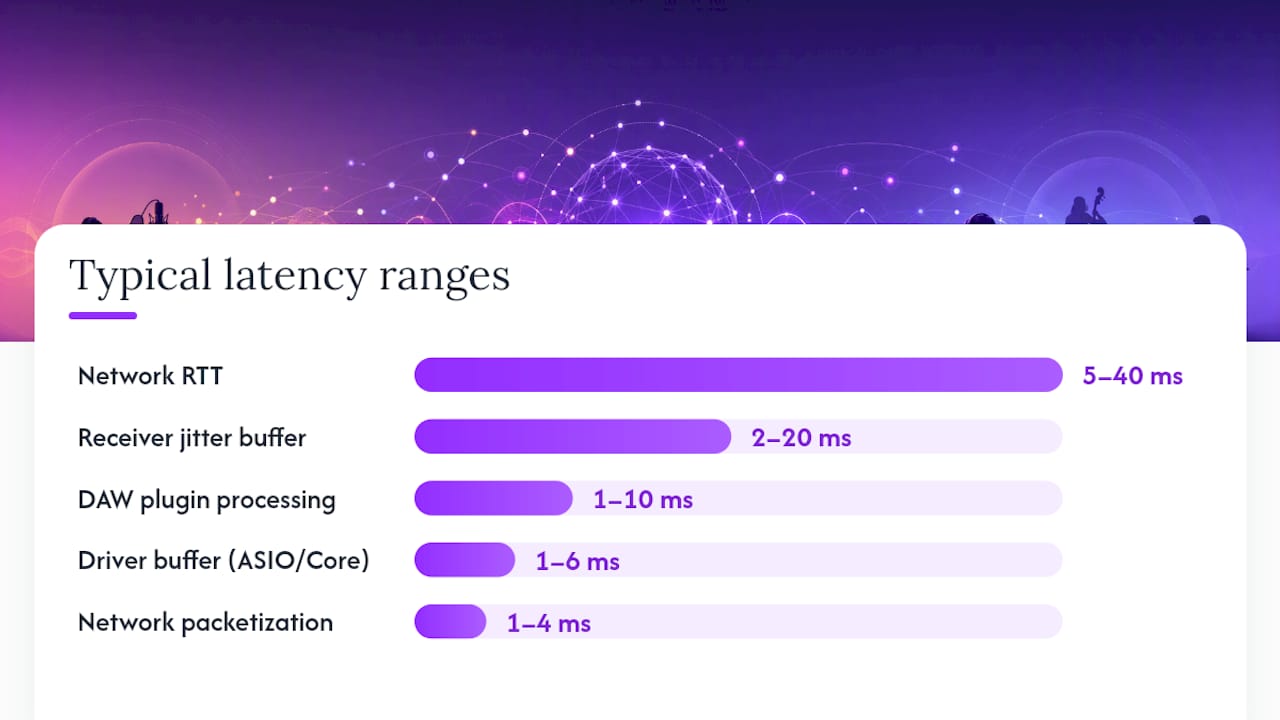
The network RTT is the one contributor you cannot shrink with software alone. For sessions within the continental US, expect 10–40 ms one-way. Add everything else, and you can see why hitting sub-30 ms M2E requires discipline at every stage.
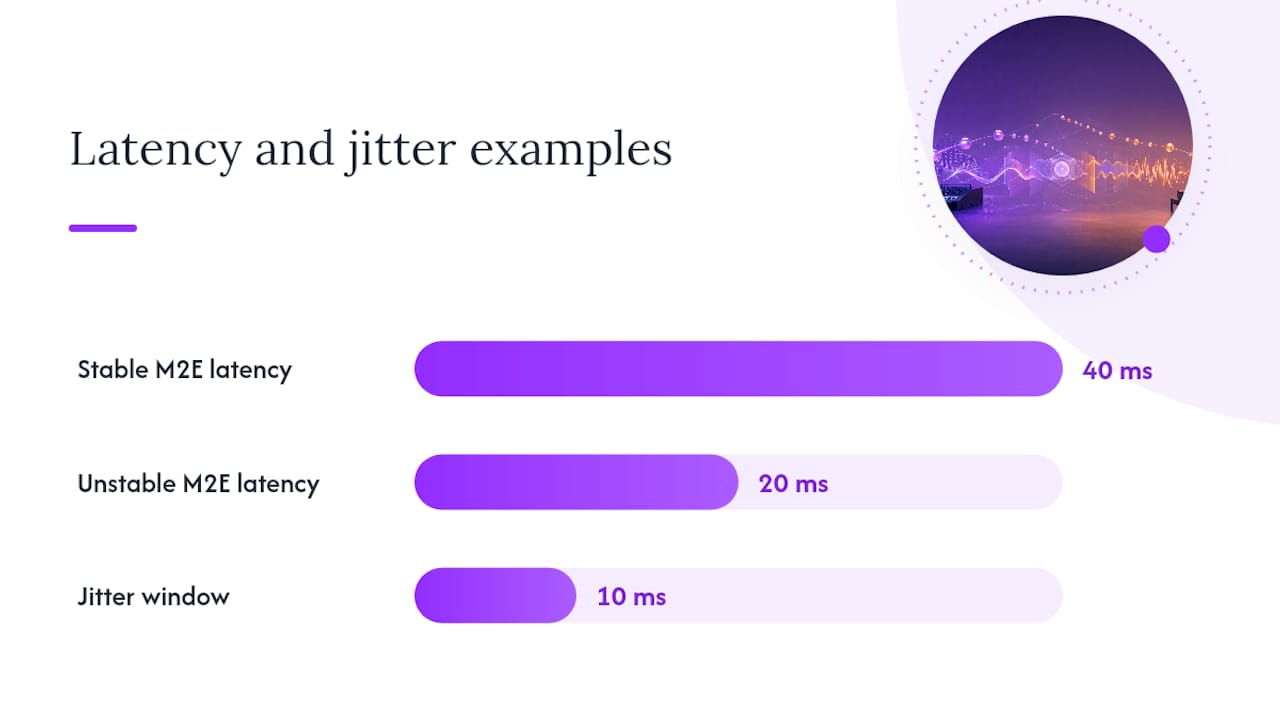
Jitter is often the real enemy. A stable 40 ms M2E lets performers adapt their feel and lock in. Jitter as low as 5–10 ms produces unpredictable timing smear that no amount of rehearsal can fully compensate for. Research on OVBOX and similar tools confirms that jitter control, uncompressed audio, and adequate bandwidth per channel are the key factors separating a musical session from a frustrating one.
Biggest contributors by setup type:
- Home studio: driver buffer and OS scheduling dominate; network jitter is the next bottleneck
- Pro studio: network RTT and receiver buffer are primary; local chain is usually already optimized
Priority Checklist: Highest-Impact Fixes First
Run these in order.
- Plug in wired Ethernet. Drop Wi-Fi entirely for the audio path. A single retransmit on Wi-Fi can spike jitter by 20 ms or more.
- Enable QoS on your router. Tag audio traffic (UDP, your NMP tool’s port) as highest priority. Consumer routers with DD-WRT or OpenWrt support this natively.
- Switch to ASIO or Core Audio drivers. Generic Windows audio drivers add 30–100 ms of latency on their own. ASIO cuts that to single digits.
- Set buffer size to 64–128 samples at 48 kHz. That yields roughly 1.3–2.7 ms of driver latency. Drop to 32 samples only if your CPU handles it without xruns.
- Set CPU power plan to “High Performance.” Windows power-saving modes introduce scheduling jitter.
- Freeze or bypass heavy plugins. Convolution reverbs and linear-phase EQs add look-ahead delay. Freeze tracks you are not actively editing.
- Enable direct monitoring on your interface. Record your dry signal locally while streaming. This removes your own voice from the latency loop entirely.
- Place a shared click track at the top of the session. Both engineers hear the same tempo reference, which anchors timing even when M2E drifts slightly.
Pro Tip: If the session becomes unstable after step 4, raise the buffer back to 256 samples and troubleshoot CPU load before lowering again. Chasing 64 samples on a loaded project causes more problems than it solves.
How to Measure m2e, Round-Trip Latency, and Jitter in Your Setup
Measurement takes about 15 minutes and tells you exactly where your budget is going.
- Local loopback test. Connect your interface output to its own input. Play a click in your DAW and record it. Measure the offset between the sent and received click. This isolates the ADC/DAC and the driver buffer.
- jack_iodelay (or equivalent). On Linux/Mac with JACK, run
jack_iodelayto get a precise round-trip measurement of your audio hardware chain. On Windows, use the ASIO latency readout in your DAW and perform a loopback recording. - Network RTT. Run
ping -n 20 [remote IP](Windows) orping -c 20 [remote IP](Mac/Linux). Note the average and the max. The difference between max and average is a rough proxy for jitter. - Full audio round-trip. With your NMP tool running, have the remote engineer play a click. Record it locally. Measure the offset from your sent click. This is your true M2E minus the performer’s own monitoring.
| Test | What it isolates | Expected value | Interpretation |
|---|---|---|---|
| Local loopback | ADC/DAC + driver | 2–10 ms | Above 10 ms: check driver/buffer settings |
| jack_iodelay | Full local audio chain | 3–10 ms | Baseline for all further calculations |
| ping average | Network one-way RTT | 5–40 ms (US domestic) | Above 50 ms: consider server relay location |
| ping max minus avg | Jitter proxy | Under 5 ms ideal | Above 10 ms: prioritize QoS and wired connection |
| Full audio round-trip | Total M2E | 20–60 ms | Under 30 ms: tight ensemble; 30–60 ms: most genres workable |
Realistic M2E target: MEVO demonstrations show that musical interaction holds up well when M2E stays within roughly 30–60 ms, and dynamic playback buffer estimation helps absorb jitter and packet loss during live sessions. For tight rhythmic genres like hip-hop or funk, push for the lower end of that range.
Latency Mitigation Tactics and Performer Workflows
Not every session hits 20 ms. Here is how to make music anyway.
Network and studio mitigations:
- Use packet loss concealment (PLC) in your NMP tool when available; it masks brief dropouts better than silence
- Set your jitter buffer dynamically rather than at a fixed size; tools like MEVO use this to adapt in real time
- Run audio over a dedicated VLAN or at minimum a QoS-tagged port to keep video and file traffic from competing
Performer workflows that actually work:
Tempo negotiation is the most underused tool in remote sessions. Slowing the tempo by 4–6 BPM gives performers more time to react across the latency gap without making the music feel sluggish. Pair that with a slightly looser groove feel, and most listeners won't notice the session was tracked remotely.
The hybrid workflow is your safety net: stream in real time for direction and feel, but record locally on both ends simultaneously. After the session, align the local recordings in your DAW for the final mix. You get the energy of a live session and the precision of overdubs.
Practitioners in networked music performance describe “real-time” as an elastic experiential category. Musicians who rehearse specifically for networked conditions adapt faster and perform better than those who treat latency as a pure technical problem.
A stable 40 ms M2E beats an unstable 20 ms every time. Jitter at 10 ms means your drummer’s snare arrives anywhere in a 10 ms window, which is musically unusable. Stable latency, even higher latency, lets performers lock in.
Pro Tip: Run two or three “latency rehearsals” before any tracking session. Play simple call-and-response patterns at the target tempo. Musicians who have practiced in networked conditions adapt their feel within minutes rather than hours.
Which Software Tools Deliver In-DAW Low-Latency Streaming?
SoundBridge is built around the in-DAW, zero-latency remote-tracking use case. Its virtual collaboration workflow gives you bi-directional plugin and hardware control, integrated talkback and video, local recording safeguards, and native DAW routing at up to 192 kHz. You stay within a single environment from tracking to mixing, eliminating the routing overhead that external NMP tools add. For producers who need audio interfaces to elevate quality and collaboration in one place, SoundBridge handles both.
JackTrip is the research community’s go-to for uncompressed bidirectional audio with fine-grained control over packet and buffer sizes. Intercontinental telematic concerts have used JackTrip successfully, though measured M2E values vary widely with network distance and buffering choices. It rewards technical users who want to tune every parameter.
SonoBus targets quicker setups with a friendlier interface, making it a solid choice for musicians who want networked performance without deep configuration. It supports variable quality and compression settings to adapt to different bandwidth conditions.
Practical notes across all tools:
- Always enable end-to-end encryption and session authentication; most NMP tools support this natively
- Use session keys or password-protected rooms to prevent unauthorized access to recorded streams
- Keep a local recording running on both ends as a fallback, regardless of which tool you use
- For remote event management at scale, add a dedicated server relay to reduce peer-to-peer RTT
Three Practical Studio Setups With Expected Latency Ranges
| Setup | Typical M2E | Jitter target | Bandwidth per channel | Single best improvement |
|---|---|---|---|---|
| Budget (USB interface, consumer router, Wi-Fi) | 50–100 ms | Under 15 ms | 1 Mbps uncompressed | Switch to wired Ethernet |
| Midrange (dedicated interface, managed router, 6-core CPU) | 20–50 ms | Under 5 ms | 3 Mbps at 48 kHz | Lower buffer to 128 samples |
| Pro (managed network, QoS/Dante, high-end interface) | 10–30 ms | Under 0.25 ms | 6+ Mbps per channel | Tune QoS per Dante guidance |
The pro setup targets aggregate latency below 40 ms with jitter below 0.25 ms, which is the threshold professional remote production workflows require for timing stability. OVBOX research shows that acoustic end-to-end delays of about 30 ms are achievable for distances under roughly 1,500 km with optimized hardware and a preconfigured low-latency OS image.
Quick Troubleshooting for Dropouts, Jitter Spikes, and Sync Issues
Symptom-to-cause map:
- Dropouts/clicks: packet loss or buffer underruns; check network first, then raise buffer size
- Timing smear / flanging: jitter; enable QoS, check for competing traffic on the same port
- Tempo drift between DAWs: clock sync failure; verify both DAWs are locked to the same word clock or MIDI clock source
- CPU overload warnings: plugin load too high; freeze non-essential tracks, disable look-ahead plugins
Fast fixes to run in this order:
- Restart the audio engine in your DAW without closing the session.
- Temporarily raise the buffer to 256 or 512 samples to determine whether the CPU or the network is the culprit.
- Isolate audio traffic: disconnect other devices from the router, close browsers and streaming apps.
- Switch to local record mode and continue the session asynchronously while you diagnose.
- Ping the remote host and compare jitter. If it spikes above 20 ms, the problem is network, not hardware.
For persistent issues, longer-term fixes include replacing a consumer router with a managed switch, testing a VPN relay to reduce RTT on long-distance sessions, and assigning a static IP to each studio machine to avoid DHCP-related reconnect delays.
Security note: always use encrypted transport (most NMP tools default to TLS or DTLS) and rotate session passwords between clients. Unencrypted audio streams on a shared network are trivially interceptable.
How Working Musicians Actually Cope With Imperfect Latency
The producers and engineers who benefit most from remote sessions are not the ones with the lowest ping. They are the ones who have rehearsed for networked conditions and treat latency as a creative parameter rather than a pure defect.
Tempo negotiation, groove adaptation, and call-and-response improvisation are skills that transfer directly from jazz and live performance into networked sessions. A drummer who has played with a click for years adapts to a 40 ms offset in one or two takes. A drummer who has never practiced in networked conditions struggles at 15 ms.
Research framing “real-time” as elastic matters practically: it means your rehearsal design should include latency simulation, not just latency reduction. Run a few bars at your expected M2E before the tracking session starts. That single habit closes more of the performance gap than any hardware upgrade below the pro tier.
For producers structuring remote sessions: use the first 10 minutes for latency rehearsal at the session tempo, then move to tracking. Reserve tight rhythmic overdubs for the async local-record workflow. Keep real-time streaming for arrangement decisions, direction, and feel.
SoundBridge brings zero-latency remote tracking into your DAW
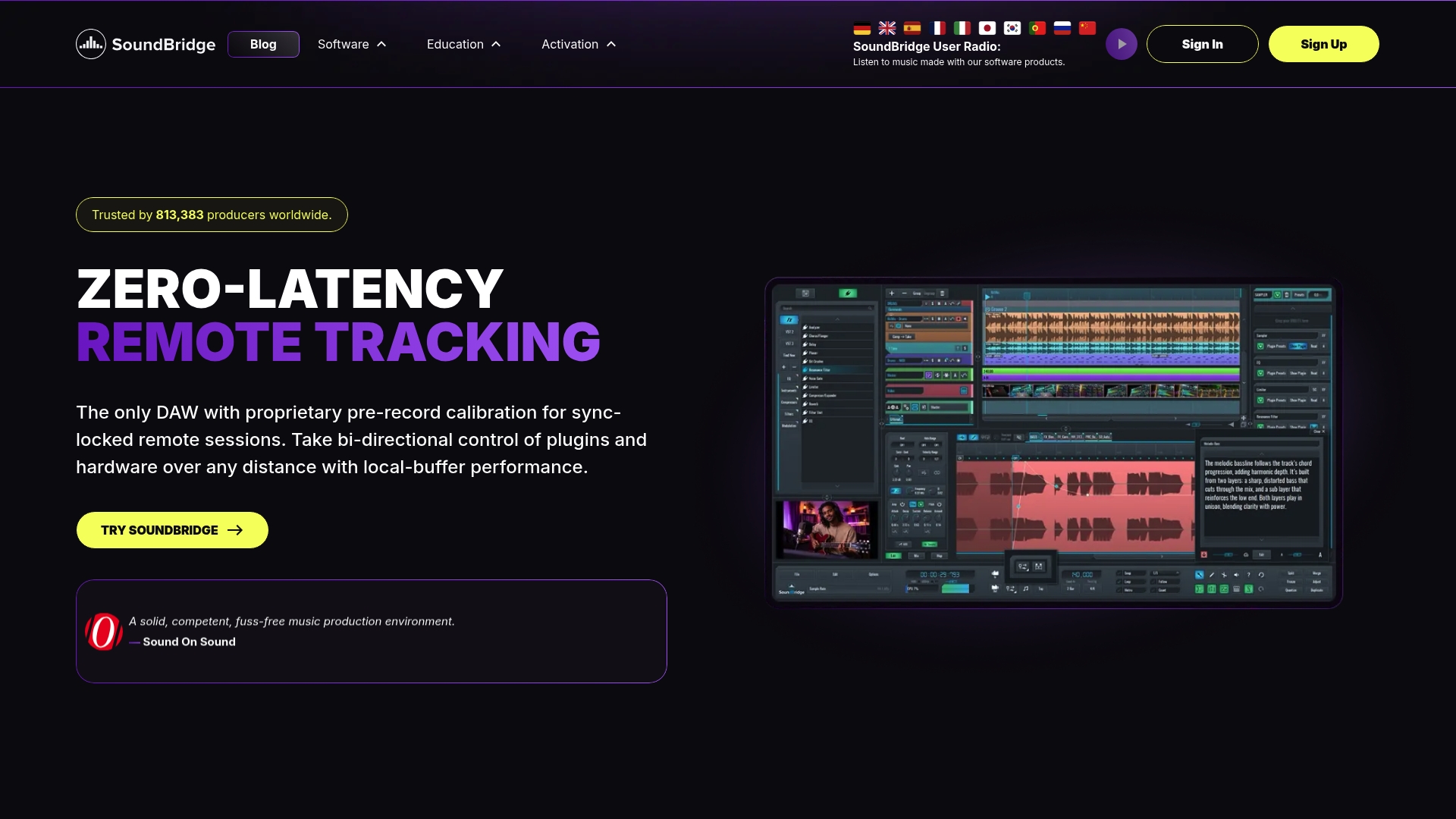
SoundBridge is built for exactly the workflow this guide describes: zero-latency remote tracking, bi-directional plugin and hardware control, integrated talkback and video, and local recording safeguards, all inside a single DAW on Mac or Windows. You do not need to route audio between three separate apps or manage an external NMP server.
- Zero-latency remote tracking at up to 192 kHz, with studio-accurate synchronization
- Bi-directional plugin control so both engineers can adjust processing in real time
- Integrated talkback and video for direction without switching apps
- Local recording safeguard running on both ends simultaneously
Start with the remote collaboration setup guide to configure your first session, or visit SoundBridge to explore the free and paid tiers and get your remote tracking workflow running today.
Sources
- According to practitioners in networked music performance, ‘real‑time’ should be viewed as an elastic experiential category rather than a fixed hardware threshold.
- Experiencing Remote Classical Music Performance Over Long Distance: A JackTrip Concert Between Two Continents During the Pandemic
- Remote production design and Dante QoS guidance (IEEE conference paper)
- Real‑Time Audio Collaboration: Tools & Best Practices | Feedtracks Blog
Recommended
MASTER MUSIC PRODUCTION
Expert-led courses designed to take you from fundamentals to finished tracks.

HOUSEFrom bouncy bass and solid kicks, this course teaches you the most modern House music production techniques needed to succeed and stand out.

TRAPQuit sounding like generic Trap and produce something World with hints of the Far East. Create ethnic soundscapes to put your Trap ahead of the curve.

AMBIENTProduce relaxing, sophisticated psy-influenced ambient. Psychedelic and relaxing to listen to, create meditative soundscapes to put your listeners in Zen.