

Avoid Lost Royalties: Markers and Cue Sheets for Film and TV Composers
Last Edited: Oct 11, 2026

Markers are the timestamps you drop into your DAW session to flag where music starts, stops, or shifts; a cue sheet is the formal document that logs music usage and supports royalty tracking for organizations like ASCAP and BMI. The single move that protects your payment: finalize your markers only after picture lock, then export them into a format your cue sheet tool or PRO portal actually accepts. Get this sequence wrong, and you risk resubmissions, delays, or missed royalties. Get it right, and some DAW platforms make the whole handoff faster.
TL;DR:
- Finalize your markers only after picture lock to ensure accurate timing and avoid delays or missed royalties during submission.
- Use absolute time markers for scene-specific cues and lock markers once a scene is complete to prevent accidental timing shifts.
- Clean and consolidate your DAW session before exporting to formats like EDL or FCPXML, which are compatible with cue sheet generators.
- Verify that timecode formats, timestamps, and field capitalization strictly match platform requirements to prevent import rejection.
- SoundBridge’s native video support and marker locking features streamline the process, reducing errors and speeding up cue sheet creation.
What a Cue Sheet Is and Why It Matters to Composers and Publishers
A cue sheet is the official log that tells performing-rights organizations exactly which music is played, when, and for how long, in a given film or television production. It is how ASCAP and BMI calculate performance royalties for every composer and publisher attached to a project. Miss a cue or misreport a duration, and that income won't be paid out correctly.
PROs expect a specific set of fields, both at the header level and for each individual cue:
- Series or film title, episode number, and air date
- Cue title, composer name, and publisher name
- PRO affiliation for each rights holder
- Cue timing (duration) and usage code (theme, background, visual vocal, and so on)
One clarification worth locking in early: a cue sheet is not a copyright registration. Copyright protection for your composition still runs through the U.S. Copyright Office, a separate process entirely. The cue sheet’s only job is to track usage for royalty payments.
Marker Types and DAW Workflows for Reliable Accuracy
Your DAW likely supports several marker types, and knowing which to use where saves you real headaches downstream. Single markers flag one instant, ideal for a cue’s IN point or a hit. Paired or range markers cover a span, useful for tracking a full cue from start to finish. CD or track markers, meanwhile, are built for album and mastering contexts rather than scoring, so keep those separate from your cue markers entirely.
A few habits keep your marker set trustworthy as a project evolves:
- Name each marker with the cue number, a short description, and the reel or scene it belongs to.
- Include usage intent in the marker title itself, such as “background” or “theme,” so it survives any export.
- Lock markers once a scene is finalized so an accidental drag does not shift your timing.
- Use tempo-independent (absolute time) markers when picture timing matters more than musical bars and beats.
Ardour and most modern DAWs let you view markers in a dedicated ruler lane, which makes auditing a long session far less painful than scrolling through waveforms.
Pro Tip: Color-code markers by cue status (draft, locked, submitted) so you can scan a session and know instantly what still needs attention.
From Markers to Cue Sheets: Export Paths and Tool Chains
Getting markers out of your DAW and into a cue sheet is a formatting problem as much as a creative one. EDL exports carry timecode and reel information well, which is why they remain common in picture editing handoffs. FCPXML preserves richer metadata, including titles and marker notes, which makes it a strong choice when your cue sheet generator supports it. Pro Tools session and text exports work too, though you will often need to strip out non-music data before anything downstream can read the file cleanly.
Before exporting, clean up your session:
- Flatten or consolidate cues onto two or three dedicated tracks
- Remove invisible cuts, muted duplicates, and any non-music clips
- Confirm every marker still lines up with picture after your final edit pass
Once the session is tidy, a cue-sheet generator can read your EDL, XML, AAF, or FCPXML file, merge duplicate clips, automatically calculate durations, and spit out a CSV, XLSX, or PDF ready for review. From there, you either upload directly to a PRO portal like RapidCue or hand the file off for manual entry. Either way, the cleaner your source export, the less time you spend fixing errors afterward.
Spotting Session Timing and When to Finalize Markers
A spotting session is when the director, composer, and often an editor sit down together to decide exactly where the music needs to live in the picture. It should happen after the film reaches picture lock, not before, since any edit made afterward can shift all the timecodes you have already recorded.
A productive spotting session captures two things for every cue:
- Precise IN and OUT timecodes for where the music starts and stops.
- The emotional or narrative intent behind the cue, since spotting is as much about the “why” as the timecodes themselves.
- Any director notes on tone, instrumentation, or reference tracks that should guide the score.
If picture changes after spotting, do not overwrite your original markers. Save a new version, note what changed, and compare against the locked cut before you touch your cue sheet again. Collaborative remote review tools make it easier for a composer and director to revisit spotting notes together without scheduling another in-person session.
PRO Requirements and How Rapidcue Speeds Submission
Both ASCAP and BMI need the same core information for every cue: title, composer and publisher names with their PRO affiliations, cue duration, and a usage code describing how the music functions in the scene. Header-level details, including the series title, episode, and air date, apply to the entire cue sheet rather than to any single row.
RapidCue, developed jointly by ASCAP and BMI, allows production companies and composers to enter and submit this data electronically, rather than mailing or emailing paper forms. Electronic submission through a system like this reduces the back-and-forth that paper cue sheets tend to generate, since fields are validated as you go rather than after a PRO staffer manually reviews a scanned document.
Before you submit anywhere, run through this checklist:
- Every cue has a unique timestamp, with no two cues sharing an identical IN point
- Composer and publisher shares add up correctly for each cue
- Usage codes match how the music actually functions on screen
- Header fields (series, episode, air date) are filled in and consistent across every page
ASCAP’s own cue-sheet instructions lay out the exact template and contact details, including the RapidCue submission address, so keep that document handy the first few times you file.
Technical Constraints That Trip up Automated Imports
Timecode format matters more than people expect. Some tools want HH:MM:SS.mmm (milliseconds), while others expect HH:MM:SS:FF (frames), and mixing the two inside one export is a fast way to break an automated import.

Some platforms enforce hard marker limits based on file length: they limit the number of markers allowed per file duration, with stricter limits for shorter files, and require every timestamp to be unique. Field expectations matter too. Lowercase values in fields like media_type can be the difference between a clean import and a rejected file.
A Practical Checklist From Markers to a Pro-Ready Cue Sheet
Once picture is locked, the path from raw markers to a submittable cue sheet follows a predictable sequence.
- Confirm picture lock and freeze your reference video file.
- Finalize marker names, timecodes, and usage tags in your DAW.
- Clean the session: flatten tracks, remove duplicates, check for gaps.
- Export to EDL, FCPXML, or your generator’s preferred format.
- Run the export through a cue-sheet generator and review every row by eye.
- Verify unique timestamps, correct shares, and usage codes before submission.
For each cue, double-check the title, duration, composer and publisher names, and usage code one more time before you hit submit.
Pro Tip: Keep a simple change log (cue_v1.csv, cue_v2.csv) alongside an archived copy of the locked picture, so any post-delivery dispute over timing has a clear paper trail.
Why Integrated DAW Features Cut Cue Sheet Errors
The recurring problems are predictable: a late picture change that nobody flags, or marker metadata that does not match what was actually recorded. Native video sync, locked markers, and remote collaboration inside a modern DAW catch most of these before they reach a PRO.
— Wake
How SoundBridge Helps You Turn Markers Into Cue Sheets Faster
Scoring to picture means your marker workflow and your video reference need to stay locked together, and SoundBridge builds that connection into the session itself rather than treating video as an afterthought.
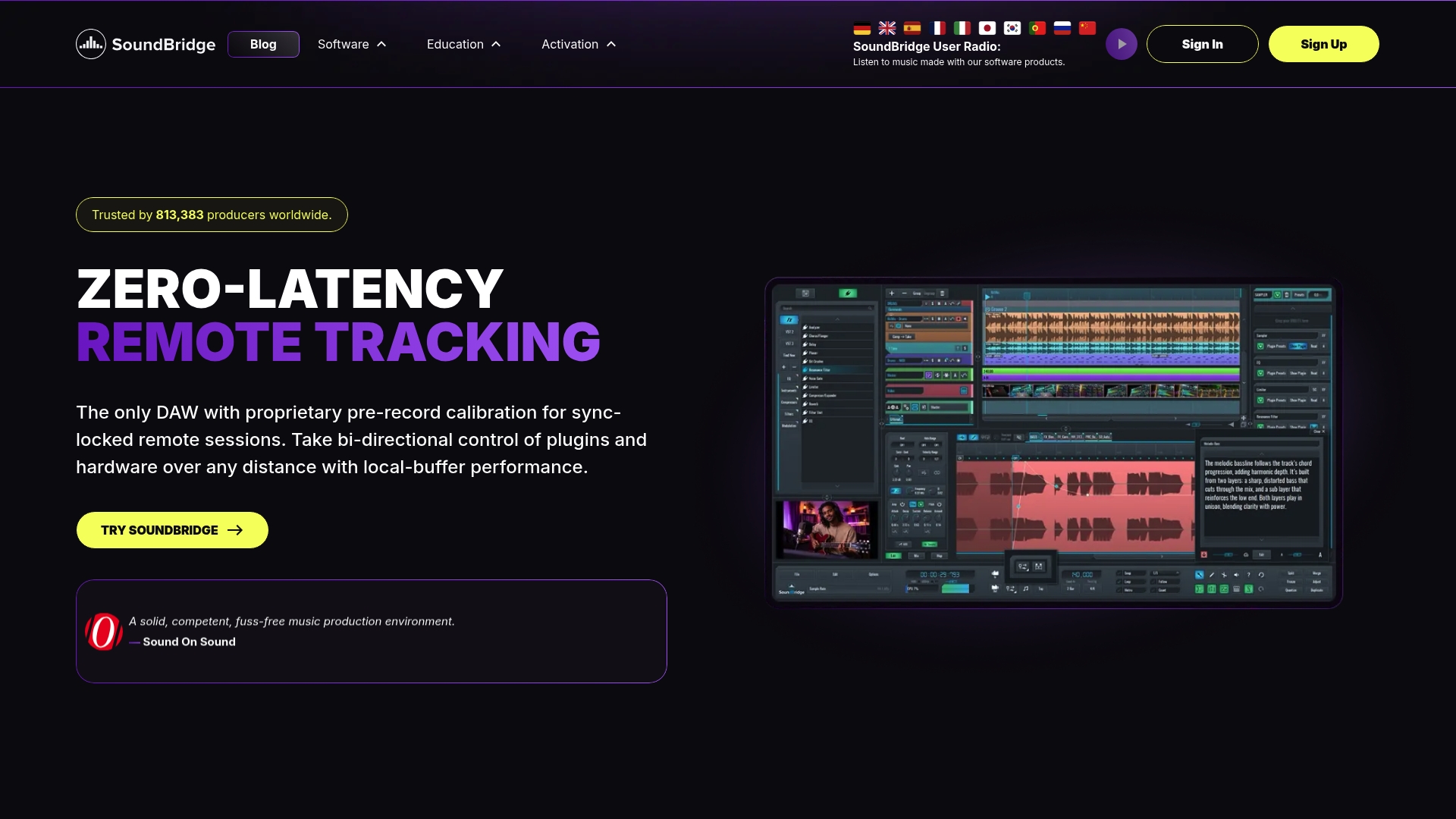
A few features that apply directly to the cue sheet workflow:
- Native video support keeps your markers synced to picture through revisions, so a late edit does not silently break your timecodes.
- Locked and tempo-independent markers protect finalized spotting decisions from accidental shifts.
- Remote collaboration features let composers, editors, and directors review spotting notes together without a shared room.
- High-fidelity export options support the clean session handoffs a cue-sheet generator needs.
If you are scoring to picture regularly, start with the Free Version to see how markers and video sync work in practice, or explore the Premium Version and Lifetime License for the full remote collaboration toolset.
Sources
- Everything you need to know about cue sheets and music royalties
- BMI and ASCAP Announce Launch of Online Music Cue Sheet Technology RapidCue
- Multitrack cue sheet and CSV file requirements
- Cue sheet instructions (ASCAP)
FAQ
What is a cue sheet?
A cue sheet is a document that logs every piece of music used in a film or television production, including cue titles, composers, publishers, and timing, so that ASCAP and BMI can calculate performance royalties. It is a financial and administrative record, not a creative or legal license itself.
Is a cue sheet a legal document?
A cue sheet is not a copyright registration or a licensing contract; it is a royalty-tracking log submitted to PROs. Copyright protection is handled separately through the U.S. Copyright Office, and any licensing terms are set out in separate agreements.
Who typically fills out cue sheets?
Music editors, composers, or production coordinators usually complete the cue sheet, often pulling directly from the composer’s finalized markers and spotting notes. On larger productions, a music supervisor may compile and verify the sheet before it goes to the PRO.
How do I create a cue sheet from DAW markers?
Finalize your markers after picture lock, clean up your session, and export to a format like EDL or FCPXML that a cue-sheet generator can read. From there, tools can merge clips and automatically calculate durations before you submit via a portal like RapidCue.
What formatting mistakes cause cue sheet submissions to fail?
Mismatched timecode formats, duplicate timestamps, and incorrect capitalization in required fields are common culprits. Some platforms also enforce strict marker limits based on file length, so checking those constraints before export prevents import rejections.
Recommended
MASTER MUSIC PRODUCTION
Expert-led courses designed to take you from fundamentals to finished tracks.

HOUSEFrom bouncy bass and solid kicks, this course teaches you the most modern House music production techniques needed to succeed and stand out.

TRAPQuit sounding like generic Trap and produce something World with hints of the Far East. Create ethnic soundscapes to put your Trap ahead of the curve.

AMBIENTProduce relaxing, sophisticated psy-influenced ambient. Psychedelic and relaxing to listen to, create meditative soundscapes to put your listeners in Zen.