

Studio Producers: Stop MIDI Feedback Loops With Windows and DAW Fixes
Last Edited: Oct 13, 2026
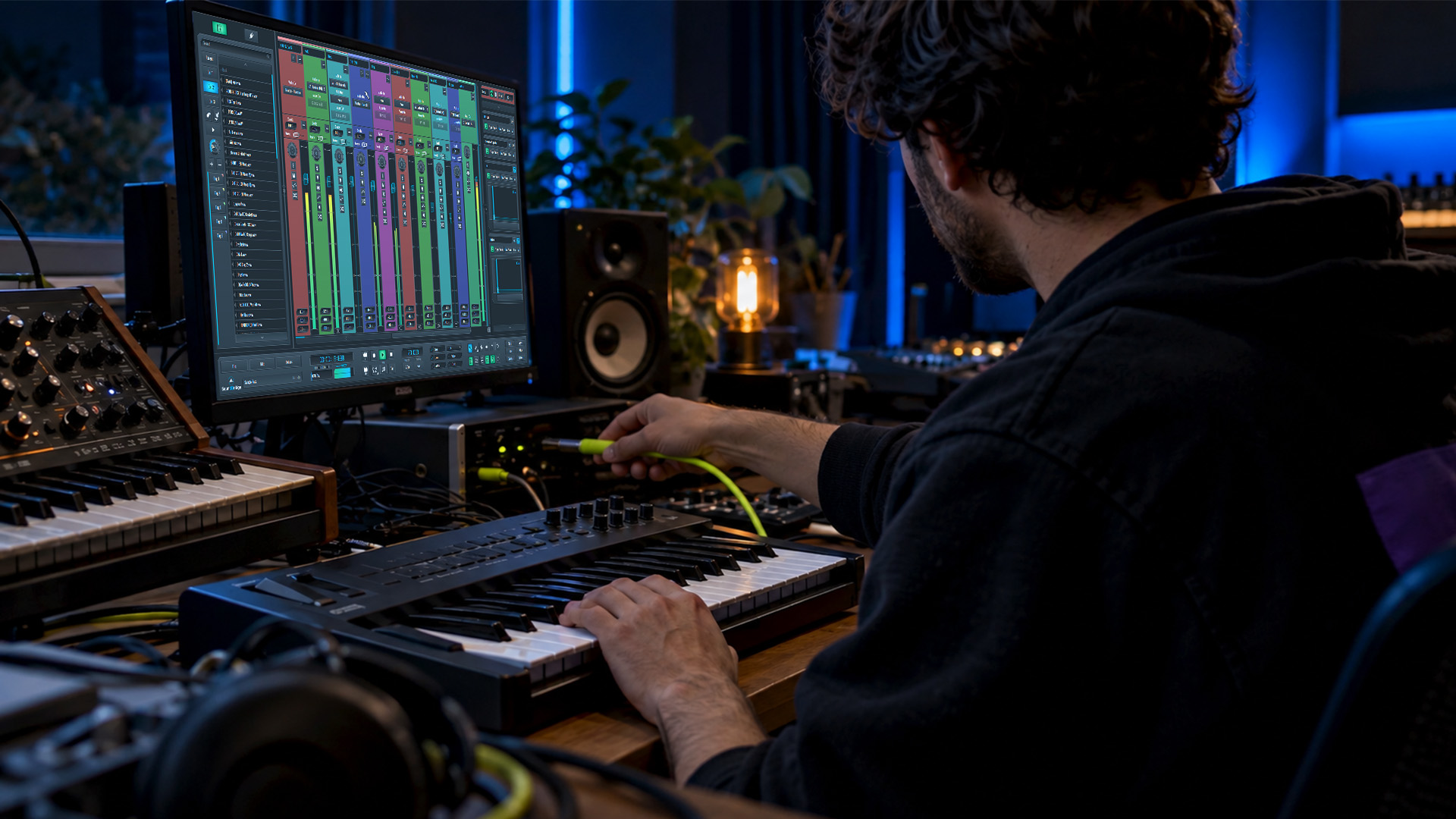
A MIDI feedback loop occurs when a device sends a message back to itself, creating a closed circuit that can trigger runaway notes, stuck keys, or garbled data. The fastest fix: mute the loopback connection or flip Local Control OFF on your synth right now. Once the noise stops, we will walk through why it happened and how to keep it from coming back.
TL;DR:
- Using Local Control OFF on your synth or muting loopback routes can immediately stop MIDI feedback loops and prevent runaway notes or garbled data.
- The most common causes are internal synth wiring, DAW settings like MIDI Thru or soft-thru, and physical or virtual routing that creates a feedback path.
- Systematically disconnect devices, disable soft-thru, and use monitoring tools to identify which port or app causes the loop, then reconfigure your setup accordingly.
- On Windows, MIDI Services automatically mute loopbacks when feedback is detected, providing an additional safeguard to prevent continuous loops.
- Keeping routing simple, labeled, and consistent, along with saving templates and disabling soft-thru during recording, minimizes accidental feedback and saves studio time.
What Causes MIDI Feedback Loops in Your Studio
Most loops trace back to one of three culprits. Local Control is the usual suspect: when your sequencer echoes incoming notes back to the synth, and the synth’s own keyboard is still internally wired to its sound engine, you get the same note twice. MIDI disconnects the keyboard from the internal engine, so external data controls the sound without double-triggering.
The second cause lives inside your DAW. Settings like MIDI Thru, soft-thru, or “echo MIDI input” are built to help you monitor incoming notes, but they also re-send every message right back out, often straight into the same device that sent it.
The third is routing itself:
- Virtual loopback ports connected in both directions, feeding a signal back into its own source
- Physical two-way USB or DIN cabling where both ends talk and listen on the same channel
- Studio setups with a controller, a synth, and a DAW all echoing through one shared bus
Quick Emergency Checklist: Immediate Steps to Stop a Loop Now
When notes start stacking, or a synth screams on its own, work through these steps in order:
- Mute the virtual loopback or the DAW track connected to the misbehaving device.
- Turn Local Control OFF on the synth or controller, or send CC122 = 0 if your gear supports it.
- Disable your DAW’s MIDI Thru or Echo MIDI Input setting, or mute the offending MIDI track.
- Pull the USB or MIDI cable as a last-resort physical break.
- On Windows, check for a loopback-mute notification before you unmute anything. Windows MIDI Services automatically mutes loopback endpoints as soon as it detects feedback, so that notification often means the problem is already contained.
Pro Tip: Keep one hand near the volume fader while you troubleshoot. A muted speaker buys you time to think without waking the whole building.
Step-By-Step Diagnosis: Isolate the Device or App Causing the Loop
Once the noise stops, find out what caused it so it doesn’t happen again next session. Start clean and rebuild your connections one piece at a time.

Boot the synth standalone first, with no cables attached, and confirm it behaves normally. Then connect the audio interface or USB cable alone, without launching your DAW. Finally, open the DAW and add one MIDI route at a time, listening for the loop to reappear after each addition.
Use a monitoring tool to see exactly what is moving through each port:
- MIDI OX on Windows or MIDI Monitor on macOS show the direction and rate of every message passing through a port.
- The Windows
midiconsole lets you enumerate endpoints and watch traffic without opening a third-party app. - Close background apps one at a time while unmuting a loopback, and note which closure stops the re-muting.
- Check any mapping or routing software for a route that feeds a loopback endpoint back into itself.
Stuck notes and runaway control-change messages are classic loop signatures. If a note hangs after you release the key, or a knob value climbs on its own, you are almost certainly looking at an echo. Write down the exact port names involved the moment you spot the pattern. That label will save you from repeating the same diagnostic the next time your setup changes.
Prevention: Wiring, Routing, and Habits That Keep Loops Away
A clean signal path beats a clever one. Route sequencing data in a single direction, one MIDI out from your controller into the synth’s input, rather than looping data through multiple hubs. If your interface offers dedicated ports for each device, use them instead of daisy-chaining through a shared bus.
A few habits make the difference between a quiet session and a 2 AM troubleshooting hunt:
- Never set an app’s input and output to the same loopback endpoint.
- Save named routing templates for each project so you are not rebuilding connections from memory.
- Label your physical ports and cables, especially in a studio with more than one controller.
- Disable soft-thru while tracking and use track mute instead of changing routing mid-session.
- For network MIDI setups, manage sessions and discovery carefully. Network MIDI 2.0’s session model is designed to reduce accidental echoes on a shared network, though it still requires deliberate session management to avoid unintended two-way routing.
A routing workflow guide from Vector DSP’s parallel effects routing walkthrough covers similar discipline for audio signal paths. The same per-lane thinking applies well to MIDI: know exactly where each connection starts and ends before you hit record.
Windows Tools for Loopback Setup and Feedback Protection
If you produce on Windows, you already have a built-in safety net. Windows MIDI Services automatically mutes a loopback the instant it detects a feedback condition, which is normal protective behavior, not a bug.
Windows mutes loopbacks by default when feedback is detected; this default setting is called Feedback Protection. Microsoft’s Windows MIDI Services documentation confirms the default protection mode is “Mute,” which stops the loop without deleting your endpoint configuration.
To manage this directly:
- Open MIDI Loopback Setup or the
midiconsole to see every active endpoint and loopback on your system. - Use console commands to mute, unmute, or recreate a loopback once you have confirmed the source of the loop.
- Choose “Do nothing” only for specialized apps that intentionally echo messages as part of their design, and understand that doing so removes the automatic safety net.
- Collect a trace through the console if the loop keeps recurring, and read the mute log to see which endpoint triggered the protection first.
The midi console tool supports commands like enumerate, endpoint, and loopback, giving you a direct line to the exact moment feedback started.
DAW Routing Habits That Keep Collaboration Loop-Free
Our routing is built around named ports rather than generic numbered inputs, so you always know exactly which device feeds which track. Before a remote session, it is recommended to save a routing snapshot and lock it in place, especially when remote tracking and bi-directional plugin control are both active and multiple collaborators are sending MIDI into the same project.
A short pre-session checklist keeps things clean:
- Label every port by device name, not by number.
- Save a routing template before anyone starts playing.
- Run a monitor app and confirm clean traffic with everything muted.
- Unmute one connection at a time and listen for repeats.
Disable soft-thru while recording and rely on track-level muting instead of changing routes mid-take. It keeps your signal path predictable, which matters most the moment a second player joins your session from across town.
Pro Tip: Test your routing snapshot alone before inviting a collaborator in. A loop is far easier to isolate with one set of hands on the keyboard.
Why Disciplined Diagnosis Saves Real Studio Time
A feedback loop feels chaotic in the moment, but it is almost always a configuration problem with a traceable cause. A short, repeatable diagnostic routine — test standalone, add one connection at a time, label what you find — can turn a potential 20-minute scramble into a two-minute fix. Document your working setup once, and you rarely have to debug the same loop twice.
— Wake
Keep Your Routing Clean With SoundBridge
MIDI and audio routing should be something you control with confidence, not something you fight every session. Remote tracking and bi-directional control of plugins and hardware can help keep your connections predictable even when a collaborator joins from another studio entirely.
Here are reasons producers lean on routing-heavy sessions:
- Named, explicit routing paths instead of generic numbered ports.
- Bi-directional hardware and plugin control.
- Remote tracking for sessions with more than one player.
Explore the Free Version, Premium Version, and Lifetime License options and find the plan that fits your studio.
FAQ
What is a MIDI loop?
A MIDI loop occurs when a message sent from a device or app is routed back into its own input, creating a closed circuit that repeats or amplifies the original signal. Common triggers include Local Control left on, soft-thru settings, and loopback endpoints wired in both directions.
What is the purpose of a feedback loop?
In audio and MIDI systems, feedback protection is designed to detect an unintended closed circuit before it damages speakers, ears, or hardware. Windows MIDI Services automatically mutes loopback endpoints for exactly this reason, preventing the repeat from escalating.
Is MIDI still used today?
Yes, MIDI remains the standard protocol for connecting controllers, synths, and software instruments, and it continues to evolve. MIDI.org’s work on Network MIDI 2.0 shows active development of session management and transport improvements for modern networked setups.
Is loopMIDI available for Windows 11?
Third-party loopback utilities have long been used on Windows for virtual MIDI routing, though Windows now includes native tools. The built-in MIDI Loopback Setup and midi console handle loopback creation and feedback protection directly within Windows MIDI Services.
Sources
MASTER MUSIC PRODUCTION
Expert-led courses designed to take you from fundamentals to finished tracks.

HOUSEFrom bouncy bass and solid kicks, this course teaches you the most modern House music production techniques needed to succeed and stand out.

TRAPQuit sounding like generic Trap and produce something World with hints of the Far East. Create ethnic soundscapes to put your Trap ahead of the curve.

AMBIENTProduce relaxing, sophisticated psy-influenced ambient. Psychedelic and relaxing to listen to, create meditative soundscapes to put your listeners in Zen.