

Make Unusual Drum Loops with Comb Filter
Last Edited: Nov 14, 2023
We all got used to applying equalizers, compressors, and different LP/HP filters to the drum loops and drums. However, sometimes, if not always, being creative pays off. Applying multiple effects on drum loops is fun, but recently, I came across an excellent way to make your drum loops "talk," I will show it to you in the following tutorial.
Comb Filter
The core effect of this tutorial is the comb filter. In signal processing, a comb filter is implemented by adding a delayed version of a signal to itself, causing constructive and destructive interference. Furthermore, the frequency response of a comb filter consists of a series of regularly spaced notches, giving the appearance of a comb.
Spice up Your Drum Loop
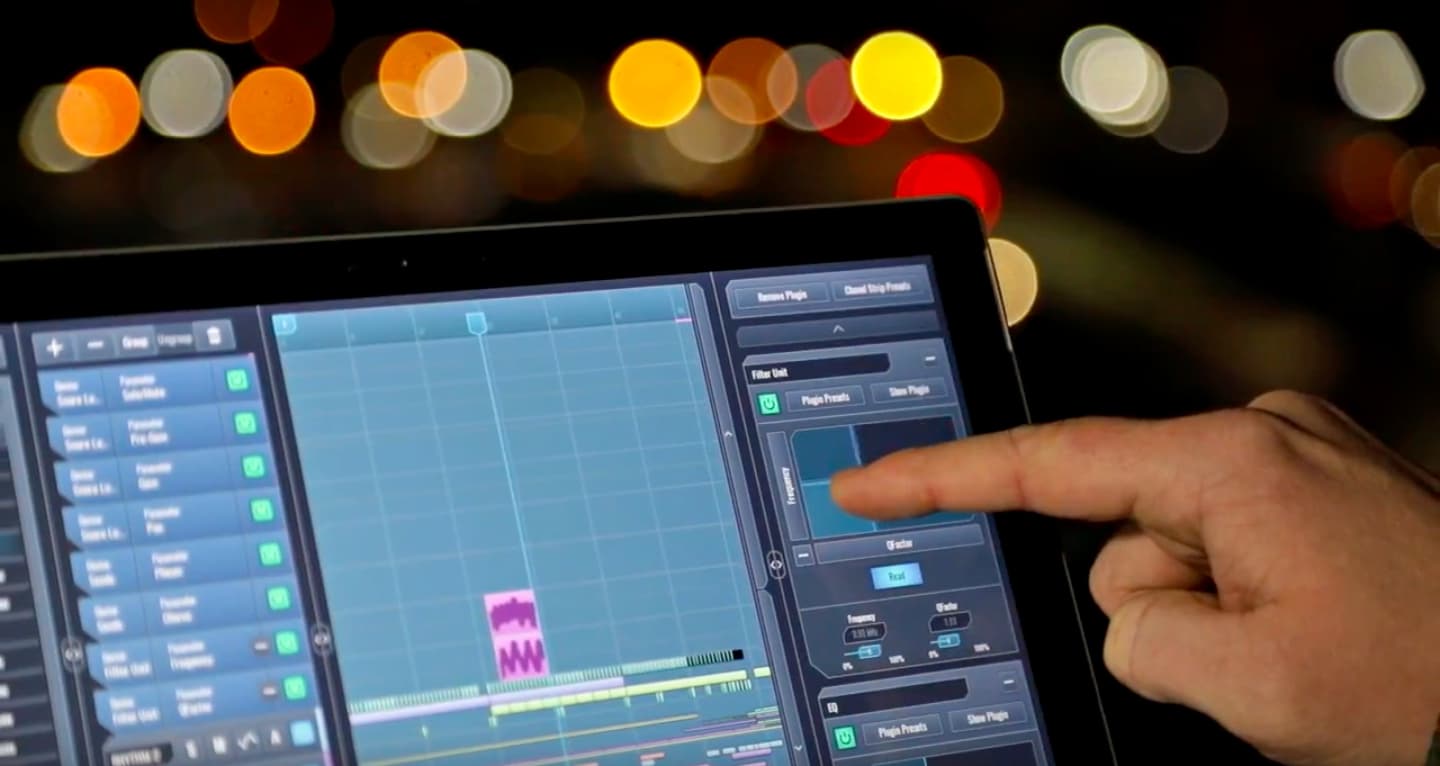
In our SoundBridge: DAW, I have made a short loop containing a percussion drum loop on which I will apply comb filtering. So, let's listen to this percussion loop unprocessed.

~Percussion Loop - Unprocessed
MComb by Melda Productions
For the comb filter effect, I have chosen MComb by Melda Productions, but there are other alternatives out there that you can use. Let's get to know the interface of the MComb a bit.

The Interface
We can see the dry/wet and output sections in the top part of the interface. Additionally, below are four independent filters, each containing the same parameters. Furthermore, the bottom part is reserved for the graphical representation of the filters. Graph editor includes a visual representation of the filters. Each point is one filter. The horizontal position is its frequency, and the vertical position is its feedback. Moreover, the horizontal pull bar controls its panorama, and the vertical pull bar controls its gain.
If you click on the vertical panel named "Meters & Subsystems, "you'll also enter the sub-menu, which contains a useful metering system and modulation routing paths. So, I have worked on this preset and modulated the frequency and the feedback of the Filter 2. If you click "MOD 1, " a new interface part containing LFO pops up. Envelope and other controls are needed to automate the Filter 2 parameters.

Having set all 4 filter sections on different stages, let's engage and listen to them individually until we reach the full effect.
~Percussion Loop - MComb Filter 1
~Percussion Loop - MComb Filter 2
~Percussion Loop - MComb Filter 3
~Percussion Loop - MComb Filter 4
In the end, let's listen to our processed drum loop in the contents of the entire sequence with other elements in the mix.
~Full Mix
MASTER MUSIC PRODUCTION
Expert-led courses designed to take you from fundamentals to finished tracks.

HOUSEFrom bouncy bass and solid kicks, this course teaches you the most modern House music production techniques needed to succeed and stand out.

TRAPQuit sounding like generic Trap and produce something World with hints of the Far East. Create ethnic soundscapes to put your Trap ahead of the curve.

AMBIENTProduce relaxing, sophisticated psy-influenced ambient. Psychedelic and relaxing to listen to, create meditative soundscapes to put your listeners in Zen.