

Freeze vs Bounce: Which One to Use and When
Last Edited: Oct 26, 2026
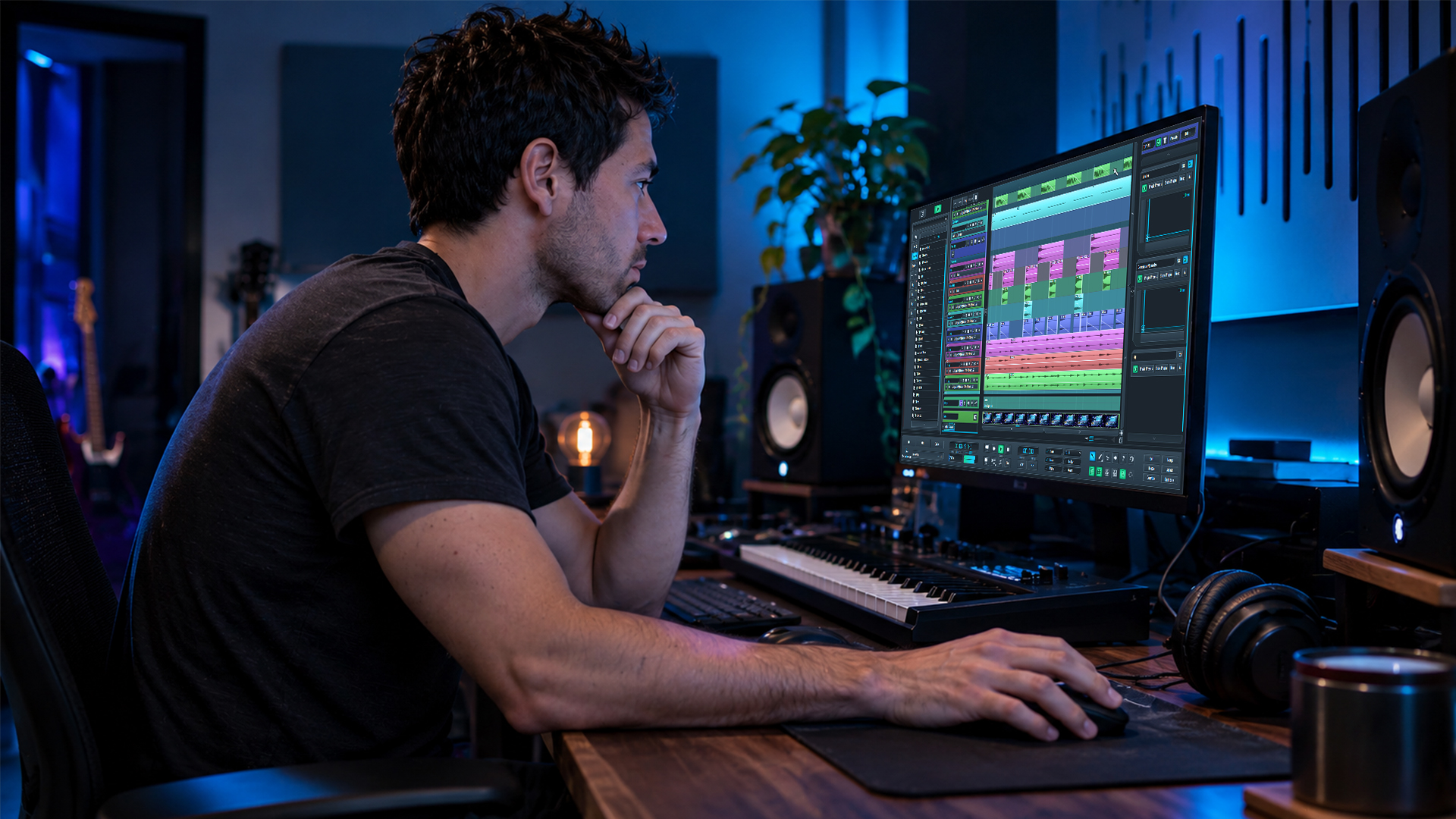
Freeze is a temporary render: your track becomes audio so it stops eating CPU, and you can unfreeze it to get your MIDI and plugin settings back. Bounce is a commitment: you print the track, or the whole mix, to an audio file, and you move on. Freeze buys you time. Bounce closes a decision.
That is the short version. The rest of this guide shows where the two overlap, where they trip people up, and how to use both so your sessions stay fast, your mixes stay flexible, and your collaborators can open what you send.
TL;DR
- Freeze renders a track to audio temporarily to lower CPU load. It is reversible, so you can unfreeze and edit the original instrument or effects.
- Bounce renders to audio as a final step, either as a file you export or as a new track that replaces the source. Treat it as permanent.
- Freeze while you are still mixing. Bounce when a part is done, when you share a session, or when you want a stem or a final mixdown.
- Plugin latency, randomness in synths and effects that ring out can make a render sound slightly different. Always listen to the result before you delete the original.
- Naming differs between DAWs. Learn what your own software means by freeze, flatten, bounce in place, and export before you rely on it.
What Freeze Actually Does
A frozen track is a track rendered to audio behind the scenes. The instrument and its plugins stop running in real time. Your computer plays back an audio file instead, which is far lighter to process.
The key word is temporary. One DAW’s support documentation describes freeze as a quick render that frees system resources, and says you can unfreeze tracks at any time to edit the original MIDI, audio, or plugin settings. The same page notes that you can freeze up to a chosen point in the signal chain, so anything after that point keeps processing the rendered audio live.
An engineer who wrote for Sound On Sound describes the logic well: virtual instruments and processing plugins can consume significant CPU and memory, and sometimes add latency. One plugin is rarely the issue. A hundred tracks of them is.
One technical way to think about it: Freeze trades CPU use for disk use. You spend a bit of storage and a few seconds of rendering, and you get your processor back.
What You Keep and What You Give Up
When a track is frozen, you keep:
- The ability to unfreeze and return to the live instrument or effects chain.
- Your original MIDI and plugin settings, stored with the session.
- Basic audio-level control, such as volume, pan, and often sends.
You give up, until you unfreeze:
- Changing notes, patches, and plugin parameters.
- Anything that depends on the live processing chain. Most DAWs lock these controls on a frozen track.
Some DAWs add a second step after freezing, often called flatten. Users on one music-production forum describe it this way: flatten works only on a frozen track, and it turns the track into an ordinary audio track while discarding the original MIDI or effects. In other words, freeze plus flatten behaves like a bounce in place.
What Bounce Actually Does
Bounce is a word with many meanings, which is why the confusion exists. Depending on the DAW and the menu, bounce can mean:
- Bounce to a file. Export a track, a selection, or the full mix as a WAV, AIFF, or MP3. This is your final master or a stem for someone else.
- Bounce in place. Render a track to new audio on the same track or a new one, then deactivate or replace the source.
- Bounce to a new track. Render the output of a bus or a group onto a fresh audio track, keeping the original tracks muted for safety.
All three share one idea: the result is audio, and it is meant to stay audio. The same support page recommends using bounce when you are finished with a track and want to commit it permanently to the session, or share the session.
That last point matters more than most producers expect.
Freeze vs Bounce at a Glance
| Freeze | Bounce | |
|---|---|---|
| Purpose | Free up CPU while you keep working | Commit a part, deliver a file, share a session |
| Reversible | Yes, unfreeze any time | Not by design, unless you keep the source |
| Editing MIDI and plugins afterward | Locked until you unfreeze | Gone from that track, unless you keep a backup |
| Output | Temporary audio tied to the session | Audio file or a new audio track |
| Best stage | Writing and mixing | Finalizing, collaborating, mastering, and delivery |
| Risk | Forgetting a track is frozen | Printing something you later wish you could change |
When to Freeze
Freeze when the problem is performance and the creative work is not finished.
- Your buffer is maxed out, and you are getting dropouts. Freeze the heaviest tracks first: big synths, convolution reverbs, amp and orchestral sample libraries.
- You are in the middle of mixing. You still want to nudge an EQ or fix a note on Friday, but not hear crackles today.
- You want to try an idea fast. Freeze the drum bus, then build the rest of the arrangement at a lower latency setting.
In most cases, it is best to reserve freezing for active mixing stages when you need a quick performance boost without sacrificing late-stage tweaks. It focuses on quickly rendering tracks to audio on disk while keeping the option to go back.
A Freeze Checklist
- Solo the track and play it once, so you know what it should sound like.
- Freeze it.
- Play the frozen track and compare. Check note starts, reverb tails, and stereo width.
- Keep working. Unfreeze for edits, then refreeze.
When to Bounce
Bounce when you want the sound, not the possibility of changing it.
- You are done with a part. The bass is right, the synth is right. Print it.
- You are sending the session to someone else. A collaborator may not own your plugin, may run a different version, or may be on another operating system. Audio plays everywhere. Sound On Sound’s advice, per our research, is to save bouncing for the finalization phase because it removes the risk of missing plugins or incompatible instrument versions on another computer.
- You want stems. Drums, bass, music, and vocals, each printed as a file, make mixing, remixing, and mastering simpler.
- You want a creative reset. Bouncing a synth line lets you chop it, reverse it, or pitch it as audio. Many producers print a take because a patch's randomness gave them something they cannot recreate on demand.
- You need to finish. Bouncing works like a way marker: a finished section gets printed, so you stop second-guessing it. That helps against decision fatigue late in a project, where too many open options slow you down and lead to over-editing.
The Traps That Make Freeze and Bounce Sound Different
If you have ever bounced a track and thought it sounded slightly off, you are not imagining it. Forum threads on this question keep returning to the same causes.
Plugin Latency and Delay Compensation
Your DAW’s delay compensation corrects plugins that introduce latency. Rendering can expose gaps in that system. Forum users report that after a freeze and flatten, some delays aren't compensated, and the printed audio lands late. If a bounced part feels behind the grid, nudge it and check the plugins in the chain for look-ahead processing, which is the usual source.
Randomness
Some synths and effects use random modulation, such as unison drift, random LFOs, or analog-style detune. Each render is a little different. That is a feature when you want a happy accident, and a problem when you bounce a track and the live version no longer matches. Print once, then keep that file.
Effect tails
A reverb or delay that rings out after the last note needs room at the end of the render. If your bounce stops at the end of the region, the tail is cut. Extend the selection or add a bar of silence.
Stereo imaging and phase
Wide stereo effects, short delays, and chorus can behave differently when you sum a render with the live signal. If you ever keep both the live track and the printed one active, you can get phase cancellation and a hollow sound. Mute the source when you print.
Instruments with their own routing
Multi-output instruments, sidechained tracks, and external hardware can ignore a standard freeze. For those, bounce in real time and check the result.
A workflow that uses both
This is the routine we recommend to producers who want fast sessions and clean handoffs.
- Write and sketch with everything live. Do not freeze too early. A frozen track invites you to leave it alone.
- Freeze as the load grows. Start with the heaviest instruments. Unfreeze only when the part needs real changes.
- Bounce parts you are sure about. Print a copy to a new track. Mute the original, but keep it in the session or in a folder of archived tracks.
- Bounce stems before mixing or collaborating. Name them clearly:
Song_Drums_120bpm.wav. Start every file at the same point so they line up when dropped in. - Export the final mixdown at the sample rate and bit depth the destination requires, then listen on more than one system.
If you want to see how this fits in a bigger production process, our walkthrough of real DAW workflow examples covers the order of operations from sketch to delivery. If plugin load is your main problem, our guide to using plugins for music production will help you decide which ones deserve to stay live.
Freeze vs bounce when you collaborate
Collaboration is where the choice stops being about CPU.
Suppose you send a session to a vocalist across the country. If it has frozen tracks that rely on a synth they don't own, they may see an error, silence, or a locked track. A bounced stem opens everywhere. Rendered audio is the language every DAW speaks.
A few habits that help:
- Keep a “Printed” folder with stems and a “Source” folder with the live versions, so you never lose the editable version.
- Send a reference mixdown with the session so everyone hears the same intent.
- Note tempo, key, and sample rate in the filename or a text file.
If your team records or reviews together in real time, the question changes again. A DAW built for remote sessions can reduce how often you need to render to share an idea. Our guide to a DAW with real-time audio streaming explains what to look for, and SoundBridge virtual collaboration shows how a modern remote workflow can work.
Freeze vs bounce for film and sound design
Scoring to picture adds one more reason to render: sync. Large orchestral templates can push any machine to its limit, and a frozen track still plays in sync with the video. Bounce when a cue is approved, and the director has signed off, so the final stems match what was delivered. Sound designers also bounce constantly. Print a synth hit, stretch it, layer it, and print again. This is how a single soft synth patch turns into a whole library of textures.
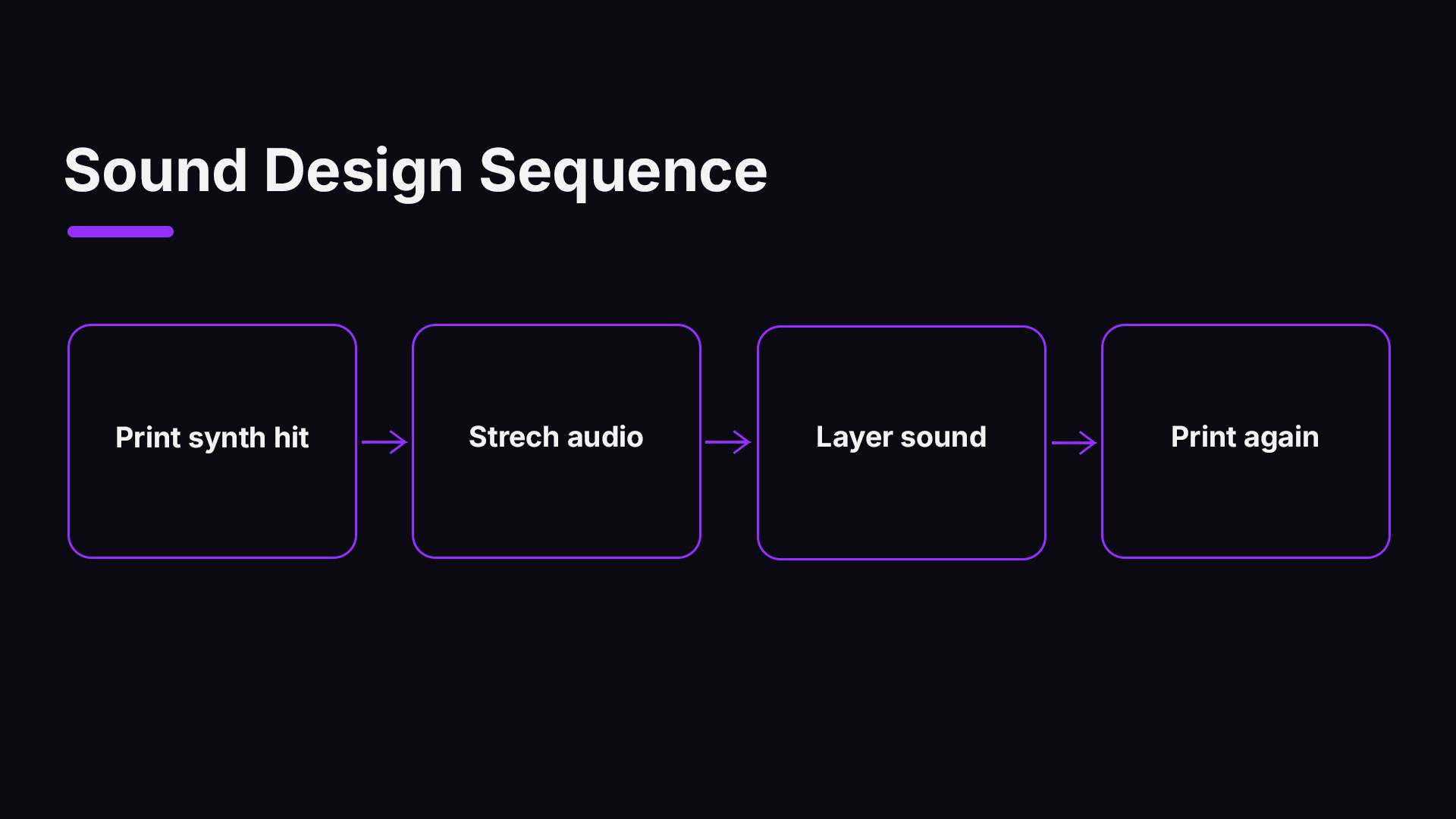
If you like to experiment, a printed sound is raw material. A good example is a frozen reverb effect, which holds a sound in an endless wash. Capture it as audio, and you can reshape it however you like. Note that this is a different use of the word: a frozen reverb is a sound design effect, not a CPU-saving render.
Our perspective
We build SoundBridge for producers who want to stay in the creative flow, so we think about this question as a workflow question first and a technical one second.
Our view is simple: freeze is for momentum, bounce is for decisions. Many producers treat them as two ways of doing the same thing, then get stuck. They freeze everything and never commit, so the session stays a maze of options. Or they bounce too early and lose the chance to fix a bassline that clashes with the kick.
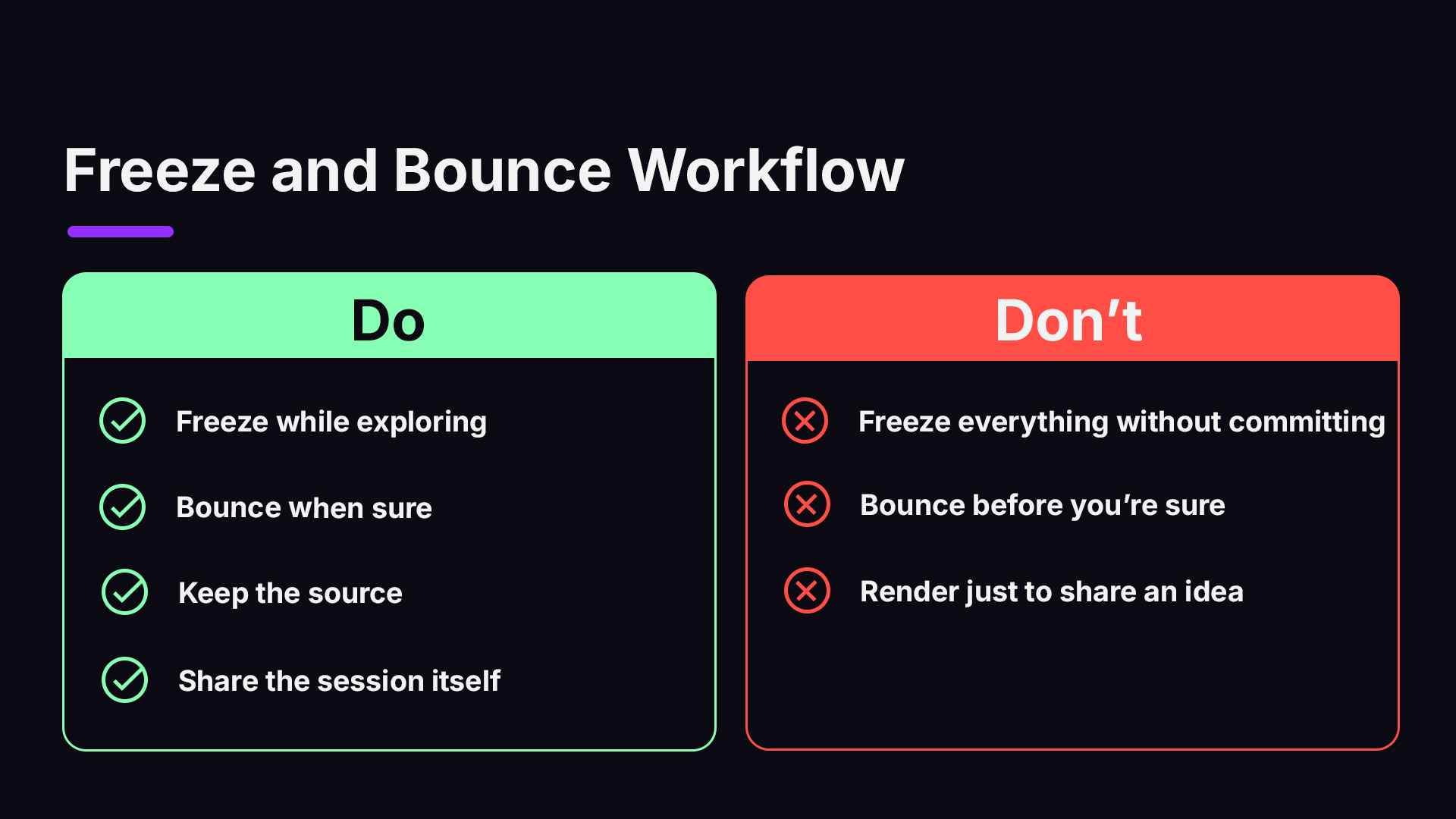
The habit we push is a clear handoff: freeze while you are exploring, bounce when you are sure, and always keep the source. Storage is cheap. A great take you cannot reproduce is not.
We also believe the best way to avoid rendering for the sake of sharing is to share the session itself. When you can track, monitor, and review with others on the same project, you print because you want to commit, not because the file will not open on someone else’s machine.
— Wake
Try it in your own sessions
When you are ready to apply this, SoundBridge offers great licensing plans, so you can start with the free plan and move up as your projects demand. Optional STUN/TURN server access for collaboration is $4.99 per month. See the options on the SoundBridge home page, or read our guide to audio editing essentials to sharpen what you do with your printed audio.
FAQ
Does freezing change the sound?
It should not, but it can. Latency compensation, random modulation in synths, and cut-off effect tails are the usual causes. Play the frozen track against the live version before you rely on it. If you hear a difference, check the plugin latency and make sure the freeze includes the full tail.
Does bouncing free up CPU?
Yes, once you mute, disable, or remove the original track. A bounced audio track is light to play, like a frozen one. If the source plugins stay active, you gain nothing, so deactivate them after you print.
Can I undo a bounce?
Only if you kept the source. Undo may work immediately after the action, but not after you save and close. Mute and archive the original instead of deleting it, and you can always go back.
Should I freeze or bounce before sending a session to a collaborator?
Bounce. Frozen tracks can still depend on plugins or instruments your collaborator does not have. Audio stems open anywhere. Include the source MIDI if they might need to edit the notes.
What is the difference between freeze and flatten?
Freeze is the reversible render. Flatten, in DAWs that have it, makes a frozen track permanent audio and discards the editable original. It works like a bounce in place.
Sources
- Bouncing and freezing tracks, DAW support documentation
- Get More From Your DAW, Sound On Sound
- Freeze and Commit functions, Sound On Sound
- Freezing vs flattening tracks, user discussion on Gearspace
Recommended
MASTER MUSIC PRODUCTION
Expert-led courses designed to take you from fundamentals to finished tracks.

HOUSEFrom bouncy bass and solid kicks, this course teaches you the most modern House music production techniques needed to succeed and stand out.

TRAPQuit sounding like generic Trap and produce something World with hints of the Far East. Create ethnic soundscapes to put your Trap ahead of the curve.

AMBIENTProduce relaxing, sophisticated psy-influenced ambient. Psychedelic and relaxing to listen to, create meditative soundscapes to put your listeners in Zen.